An old phone or laptop can feel harmless once you have stopped using it. The screen may be cracked, the battery may be tired, and the resale value may be small. But the device can still hold photos, messages, saved passwords, payment cards, browser sessions, work files, authenticator apps, location history, health data, family contacts, and account recovery access.
Before you sell, gift, trade in, donate, or recycle a device, take a deliberate approach. Do not just delete a few files or remove apps from the home screen. Back up what you need, sign out of accounts that can lock the device to you, erase the device with the built-in reset tools, and check that removable storage is gone.
Quick Answer
To wipe an old phone or laptop before handing it over, first back up important files and confirm that the backup works. Then transfer authenticator apps, payment cards, photos, licenses, and recovery details you still need. Sign out of device accounts, turn off anti-theft or activation locks where the official reset flow requires it, remove SIM cards and memory cards, run the factory reset or full drive-cleaning option, and verify that the device restarts to a setup screen.
Start With What You Still Need
The first risk is not privacy. It is losing something you meant to keep.
Make a short list before you reset anything:
- Photos and videos.
- Contacts, calendars, notes, and reminders.
- Documents, downloads, and desktop files.
- Browser bookmarks and saved tabs.
- App data that does not automatically sync.
- Two-factor authentication codes and backup codes.
- Payment, transit, loyalty, and wallet cards.
- Software licenses, subscriptions, and device warranties.
- Work files that must be returned, archived, or deleted under a workplace policy.
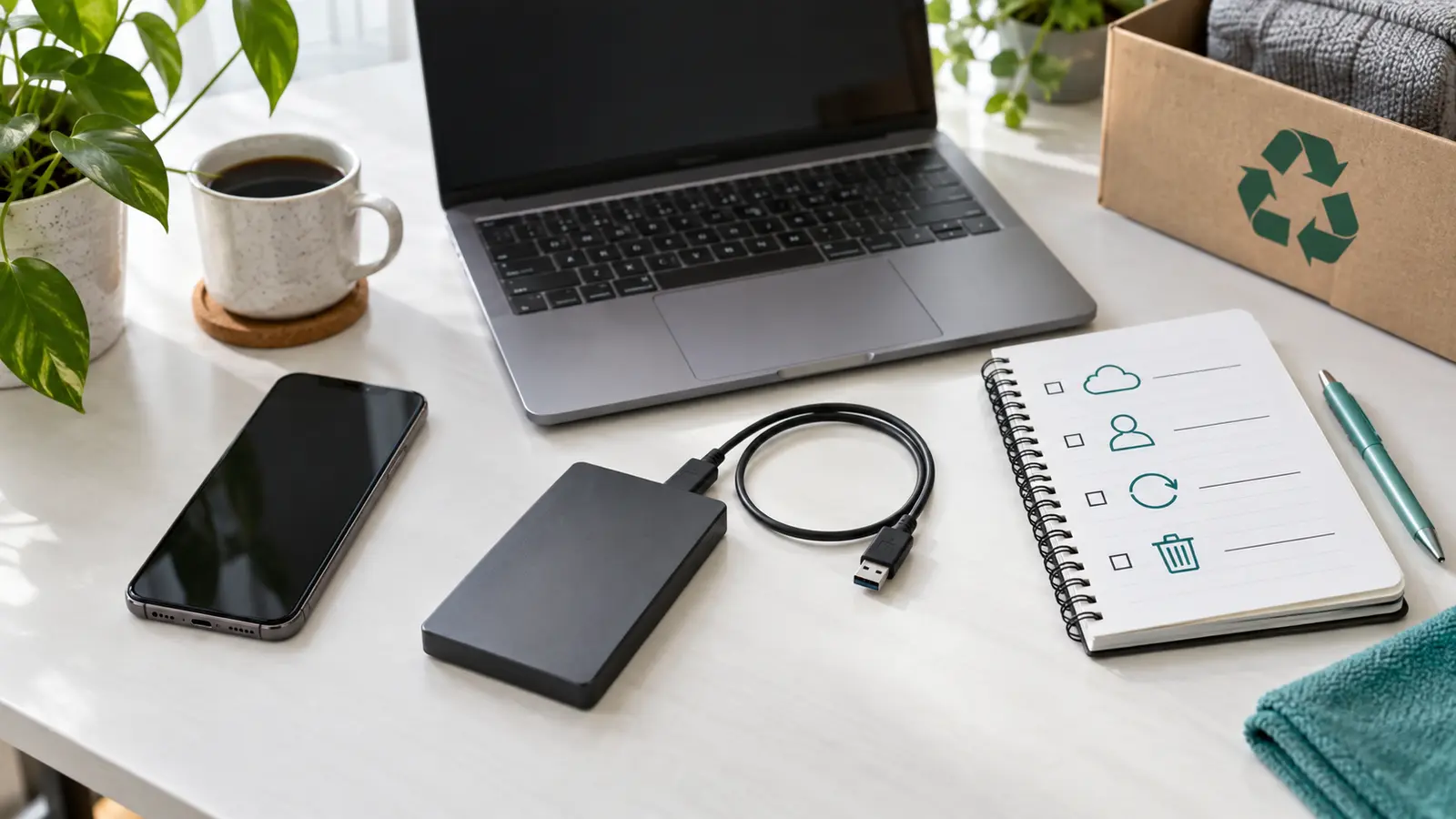
Back up the device, then test the backup from another device if possible. For phones, that may mean confirming that photos, contacts, and messages are visible in the new device or cloud account. For laptops, it may mean opening a few restored files from an external drive or cloud backup.
GDU’s guide to backing up phone photos before storage fills up is useful if the device is photo-heavy. If you are leaving a cloud account, social network, or old service entirely, pair the reset with downloading a copy of account data before the account becomes harder to access.
Move Login And Recovery Tools First
Do not reset the only device that can get you back into your accounts.
Before wiping a phone, check authenticator apps, passkeys, banking approvals, device prompts, password managers, mobile wallets, and recovery phone numbers. Some services move easily to a new device. Others require you to sign in, scan a transfer code, approve the new device, or save backup codes first.
Pay special attention to:
- Your primary email account.
- Password manager account.
- Phone carrier or mobile money account.
- Banking and payment apps.
- Government, tax, school, or health portals.
- Work single sign-on and authenticator apps.
- Apple Account, Google Account, Microsoft account, and other device ecosystem accounts.
If your phone number is changing, update important accounts before you lose control of the old number. The FTC warns that people who are not keeping their number should update services that use that number for identification, and authenticator apps may need to be reactivated.
Remove Cards, Accessories, And Storage
Physical pieces are easy to forget.
Remove SIM cards, eSIM profiles when the reset flow asks, SD cards, external drives, USB receivers, security keys, memory cards, and cases that contain personal documents or payment cards. If you are not reusing a SIM card, destroy it. If a memory card is going with the device, wipe it separately because a phone or laptop reset may not erase removable storage.
Unpair watches, earbuds, styluses, keyboards, mice, and other accessories if they are linked through the device account. If the device is part of a family group, workplace management system, parental-control setup, or mobile-device-management profile, resolve that before resale. A buyer who receives a locked or managed device may not be able to use it, and you may still see it attached to your account.
Sign Out Without Deleting Cloud Data
Many people make a nervous mistake here: they manually delete photos, contacts, or notes from an old device while it is still syncing. That can remove the same data from the cloud and from other devices.
Use the official sign-out and reset process instead. Apple specifically cautions that manually deleting items while signed in to iCloud can delete them from iCloud servers and connected devices. The safer sequence is to back up, transfer what you need, sign out as directed, then erase the device.
For Android, know the Google Account and screen-lock information before resetting. Google’s Android reset guidance says a factory reset erases data from the phone, while data stored in the Google Account can be restored. It also notes that you may need the Google Account and security information after the reset.
For Windows, sign out of apps and services where appropriate, but do not rely on sign-out alone. Microsoft recommends backing up what you need, then using Recovery settings and Reset this PC when selling, gifting, or recycling a Windows device.
Use The Built-In Reset Tool
The correct reset path depends on the device.
On iPhone or iPad, Apple’s current guidance points users to Transfer or Reset, then Erase All Content and Settings. The process removes personal content from the device and turns off services such as Find My and Activation Lock as part of the reset when completed properly.
On Android, use the factory reset option in Settings, following the manufacturer’s support instructions when labels differ. Charge the phone first, keep it connected, and allow enough time. A reset can take a while, and interrupting it can create extra work.
On Windows 11 or Windows 10, use Reset this PC and choose the option that removes everything. If the device is leaving your control, enable the clean-data option. Microsoft says this takes more time but makes it harder for someone else to recover removed files. Microsoft also notes that this consumer feature is not intended to meet government or industry data-erasure standards, which matters for regulated business devices.
On newer Macs that support it, Apple’s Erase All Content and Settings is the simplest path to reset the Mac to factory settings. If the Mac cannot use that feature, follow Apple’s older process for signing out of services, erasing the disk, and reinstalling macOS.
For Chromebooks, tablets, game consoles, e-readers, cameras, smart speakers, and wearables, use the manufacturer’s official reset instructions. Search the exact model on the manufacturer’s support site rather than relying on random forum steps, especially for devices with account locks.
Choose A Stronger Wipe For Sensitive Devices
For an ordinary personal phone or modern encrypted laptop, the built-in reset flow is usually the practical option. But some situations deserve stronger handling:
- The device held regulated work, client, medical, legal, or financial records.
- The device belonged to an employer, school, or organization.
- The storage drive is old, failing, or not encrypted.
- The device cannot boot far enough to complete a reset.
- You are not selling the device and only need safe disposal.
In those cases, ask the organization that owned the data what their disposal policy requires. A business laptop may need certified erasure or physical destruction of the drive. A personal hard drive that no longer works may be safer to destroy through an electronics recycler that handles storage media securely.
Do not promise yourself that dragging files to the trash is enough. Deleting files usually removes their visible listing, not necessarily every recoverable trace. The full reset or erase process matters because it is designed for handoff.
Verify Before You Ship Or Meet
After the reset finishes, turn the device on without signing back into your account. You should see a setup screen, welcome screen, language chooser, or operating-system installation prompt. That is a good sign.
Then check:
- No personal account is still signed in.
- No lock screen shows your name, email, phone number, or messages.
- No SIM card, SD card, or external drive is still inserted.
- The device is removed from your online account’s trusted-device list where appropriate.
- Payment cards, transit cards, and wallet items are no longer attached to the old device.
- The buyer or recipient receives the charger and accessories you intended to include, not your storage media or security keys.
For Apple devices, confirm that Activation Lock is no longer tied to your account. For Windows devices, Microsoft recommends removing the device from your Microsoft account after backing up and resetting it. For Android, check your Google Account devices page later and remove old devices you no longer use.
Do Not Hand Over A Device You Cannot Reset
If you cannot unlock the device, cannot remember the account password, or cannot finish the reset, pause the sale. A locked device can become a problem for both sides. The buyer may not be able to activate it, and your personal information may still be present.
If the device is broken but still stores data, consider repair only long enough to reset it, using official support, manufacturer repair, or a trusted technician. For recycling, ask whether the recycler accepts devices with storage removed or destroyed. Do not give an unlocked, unreset phone or laptop to a stranger just because the screen is damaged.
A Simple Handoff Checklist
Use this before the device leaves your home:
- Backed up important data.
- Opened a few restored files or confirmed data on the new device.
- Moved authenticator apps, passkeys, wallets, and recovery details.
- Saved backup codes somewhere secure.
- Signed out of device accounts using official guidance.
- Removed SIM cards, memory cards, external drives, and security keys.
- Ran the factory reset, erase, or clean-data option.
- Confirmed the device restarts to a setup screen.
- Removed the device from trusted-device lists where appropriate.
- Kept proof of trade-in, recycling, sale, or donation.
Bottom Line
The best time to protect data on an old device is before it becomes someone else’s device.
Back up first, move recovery tools, use the official reset process, and verify the clean setup screen before handoff. A careful wipe takes longer than deleting a few apps, but it protects your privacy, prevents account lock problems, and makes the device easier for the next person to use responsibly.