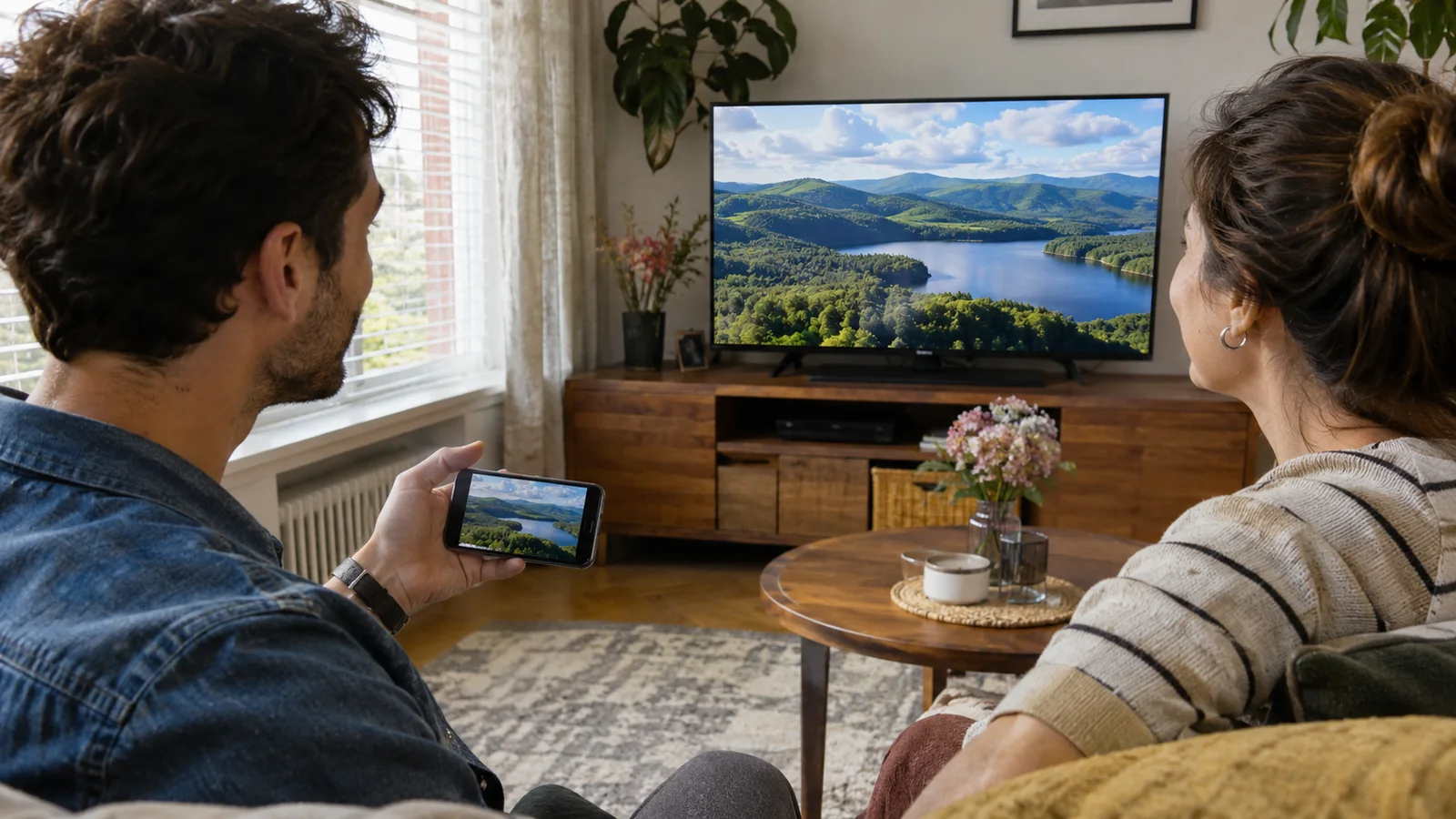
A video is easier to share when everyone can see the television instead of leaning over one small screen. To watch phone video on TV, first find a connection supported by your phone, the receiving screen and the app holding the video. A wireless option may already be available; a cable is useful only when the phone supports the required output.
Before connecting, decide exactly what you want people to see. Sending a particular video and displaying your whole phone screen are different choices, especially when personal messages or photographs are nearby.
Choose the Connection Before Opening the Video
Start with the TV’s model information and settings, including any streaming device plugged into it. Look for an explicitly supported feature such as Google Cast or AirPlay. A television being described as smart does not establish compatibility with every phone.
Use these three questions to narrow the route:
- Does the video app offer a compatible casting control? This is a sensible first option for sending selected media to a supported receiver.
- Do both devices support the same screen-mirroring method? Mirroring is useful when you need to show the display itself, but it deserves a privacy check.
- Does the exact phone model support wired video output? If so, check the adapter, cable and television input requirements before buying anything.
Keep the model numbers available while checking instructions. Similar product names and identical-looking sockets can conceal different capabilities. If a method is not supported, repeating the same connection attempt will not add it.
Cast a Video From a Compatible App
For Google Cast, the phone and a supported receiver normally need to be on the same Wi-Fi network. The receiver might be built into the television or connected separately.
- Turn on the receiving device. Select its TV input if it is an external box or streaming device.
- Check the network on both devices. Confirm the network name rather than assuming two devices in the same room are connected together.
- Open a Cast-enabled app and find its Cast button. Choose the intended receiver from the list.
- Play the video and check the television. Confirm the correct content and adjust playback using the app’s available controls.
- Disconnect when finished. Open the casting control again and end the connection.
An iPhone can use supported Google Cast apps too; this is separate from AirPlay. Allow the app’s Local Network permission if required for discovery. If the button is absent, check the app’s current support information rather than assuming every video service offers the feature.
For an iPhone and an AirPlay-compatible receiver, connect both to the same Wi-Fi network, open the video and use the AirPlay control. Choose the intended television or Apple TV and follow any code prompt shown on the TV. Some apps do not support AirPlay video. The service’s supported TV app may be the better route in that case.
Mirror Only What You Mean to Share
Mirroring reproduces the phone display rather than simply selecting one programme for the television. That makes it useful for a demonstration, but also makes navigating through unrelated apps a poor way to search for a clip in front of an audience.
Prepare before you connect:
- Open the intended video and check the surrounding album or file view.
- Close unrelated personal content and review notification-preview settings.
- Use a suitable quiet or focus mode, while remembering that allowed notifications may still appear.
- Check the receiver’s name and, where possible, confirm it on the physical screen.
On an iPhone, open Control Centre, choose Screen Mirroring and select a compatible receiver. Stop through the same control when done. Android mirroring names and supported receivers vary by manufacturer; use the instructions for your model rather than treating every Cast or Smart View menu as interchangeable.
For more lasting control over interruptions, our guide to reducing notification overload can help you review which alerts deserve access to your attention. For this viewing session, the immediate goal is simpler: make a deliberate choice about what appears on the shared screen.
Use a Cable Only After Checking the Phone Model
A USB-C socket alone is not proof that a phone can send video to a television. Check the manufacturer’s specification for your exact model and region, then confirm a compatible video adapter or cable. Older iPhones with Lightning need a suitable adapter for that connector; supported USB-C models need the appropriate USB-C video connection.
Once compatibility is established, connect the phone through the supported adapter and HDMI cable to the TV. Select the matching HDMI input with the remote. If the adapter requires power, follow its instructions. Place the phone somewhere stable so a short cable does not leave it hanging from the port.
Protected streaming content can impose further restrictions. An app may reject external playback, or require an HDCP-compatible connection, even when another video displays correctly. A cable is therefore not a universal workaround for a service’s rules. Test with a non-sensitive personal clip that you are comfortable sharing before troubleshooting a subscription programme.
Troubleshoot the Symptom You Actually Have
Change one thing at a time so you can tell which check helped.
The receiver does not appear: Recheck the supported protocol, power, input and network. Review the app’s local-network permission. Guest or managed networks may limit device discovery; ask the network owner about permitted connections rather than disabling security settings.
The TV says there is no signal: For a wired setup, match the input to the HDMI socket you used. Re-seat the connections and check the phone’s video-output support. A working charging connection does not establish a working video connection.
Menus appear but the programme stays black: Check the video service’s external-display requirements. Try the service’s supported TV app if available instead of buying adapters on the assumption that the first one is faulty.
The picture works but viewing is awkward: Check volume and playback controls on the receiving setup. If dialogue is hard to follow, our guide to changing subtitle settings explains why the app, TV and external box may have separate controls.
When you finish, end the casting or mirroring session and confirm the shared screen has stopped showing your content. The most useful setup is one you can identify, start and stop confidently, with only the intended video on display.