A slow phone can make replacement feel inevitable. Apps open late, the camera hesitates, storage warnings appear, updates fail, video calls stutter, and the battery drops faster than it used to.
Sometimes a new device is the right answer. Other times, the problem is storage pressure, an outdated app, a weak battery, poor network conditions, or years of clutter that can be cleaned up with a careful hour.
Quick Answer
Before replacing a slow phone, back it up, restart it, check storage, install system and app updates, review battery health, remove unused apps, clear large files, and inspect the charger, cable, network, and heat. If the phone is still slow, try safer reset options before a full factory reset. Replace it when security updates are unavailable, repairs cost too much, storage is permanently too small, or the phone no longer supports the apps and work you need.
Back Up Before You Troubleshoot
Start with a backup. A slow phone is often still usable, but troubleshooting can involve deleting files, removing apps, resetting settings, or eventually erasing the device. Do not begin by gambling with photos, messages, contacts, passwords, banking apps, authenticator codes, work files, or travel documents.
Check that your photos are backed up, then confirm from another device or browser that the backup is actually visible. If your phone is almost full, GDU’s guide to backing up phone photos before storage fills up can help you clear space without losing memories. Also check app-specific backups for messaging, banking, authenticator, work, and transit apps.
Restart It, Then Watch What Changes
A restart is basic, but it is not pointless. It clears temporary system states, ends stuck processes, refreshes network connections, and gives you a cleaner starting point.
After restarting, use the phone normally for a few minutes and notice the pattern:
- Is everything slow, or only one app?
- Does the phone heat up while idle?
- Is the problem worse when storage is nearly full?
- Is typing slow, or only internet browsing?
- Does the camera lag, or does the whole phone freeze?
- Did the slowdown begin after installing a specific app, update, launcher, VPN, cleaner app, or game?
That pattern matters. A phone that is slow only inside one app has a different problem from a phone that freezes on the home screen.
Check Storage Before Blaming the Processor
Low storage can make a phone feel older than it is. Google says Android devices can start having issues when less than 10 percent of storage is free. Apple points users to the iPhone Storage screen for recommendations, app usage, offloading apps, and deleting items that are no longer needed.
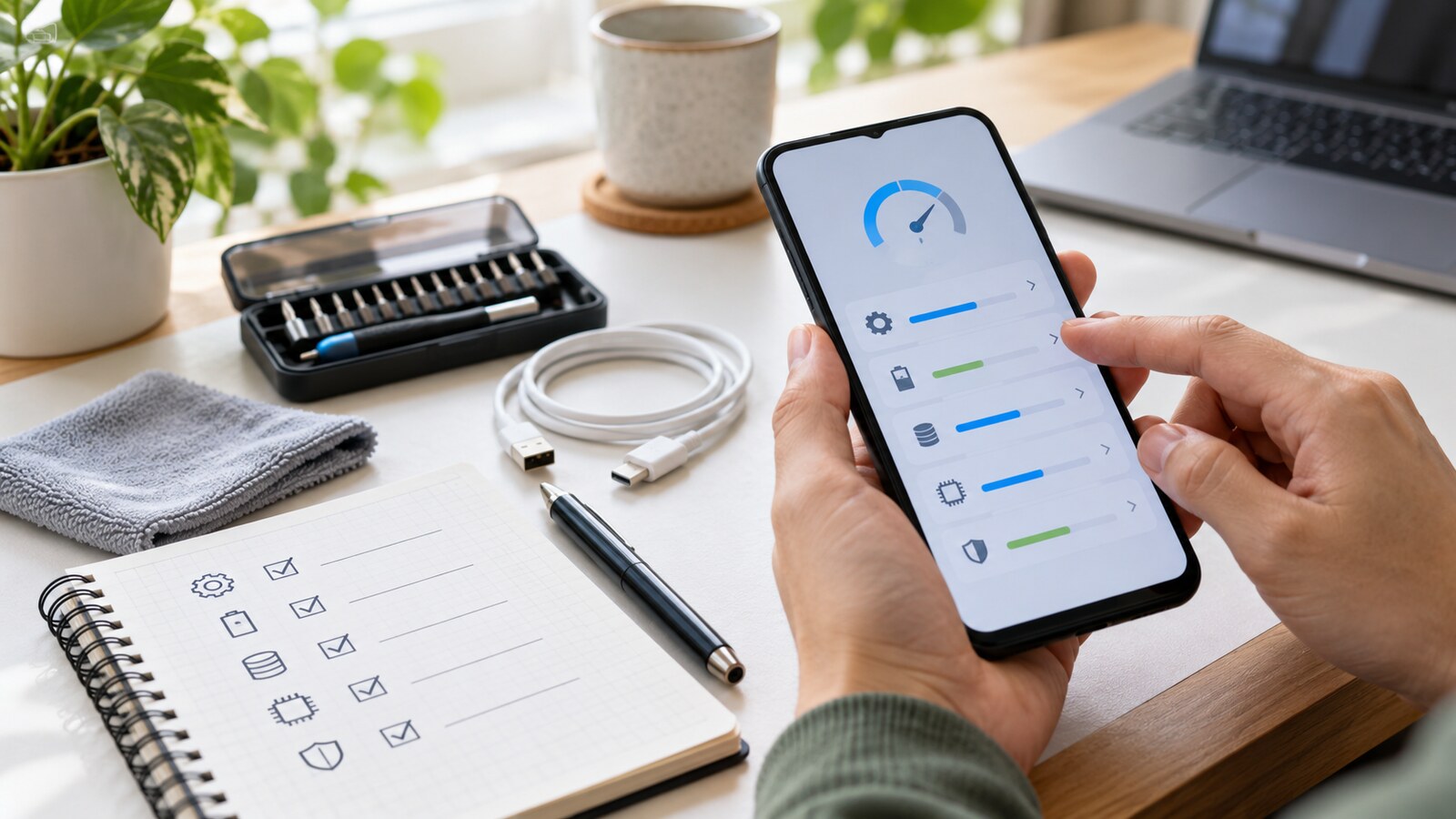
Open the storage screen and look for the largest categories: photos and videos, downloaded films, messaging attachments, offline maps, games, duplicate files, app caches, and years of screenshots.
Use built-in tools first:
- On iPhone, check Settings, General, then iPhone Storage. Review recommendations, offload unused apps if appropriate, and inspect the largest apps.
- On Android, check Settings, then Storage. On many Android phones, Files by Google can help find junk files, duplicates, large files, screenshots, and unused apps.
- On Samsung Galaxy phones, Device Care can review storage, memory, battery, and diagnostics.
Be careful with aggressive third-party “cleaner” apps. Some push ads, request broad permissions, or delete useful data. Built-in storage tools are usually safer.
Install Updates, But Do It Carefully
System and app updates can fix performance bugs, security flaws, battery drain, and compatibility problems. Before updating, charge the phone, connect to stable Wi-Fi when available, and make sure the backup is current. If an update refuses to install, lack of storage may be the reason. Apple notes that updating an iPhone or iPad requires a compatible device, internet access, and enough available storage. Google Play troubleshooting also points users to storage, connection, system updates, and restarting when app downloads or updates fail.
Update apps too. One outdated app can misbehave, drain battery, or conflict with a newer operating system. If the phone became slow after a specific app update, clear that app’s cache if your system supports it, or uninstall and reinstall it after confirming its data is backed up.
Check Battery Health and Heat
Battery age can affect performance. Apple explains that rechargeable batteries are consumable parts and that chemical aging can reduce both capacity and peak performance. On iPhone, Battery Health can show maximum capacity and peak performance capability. Samsung points users toward diagnostics and battery or power checks when a Galaxy device feels slow or unresponsive.
Do not judge only by percentage. Look for symptoms:
- The phone shuts down unexpectedly.
- Battery drops sharply under load.
- The device gets hot during simple tasks.
- Charging is unreliable with known-good chargers.
- Performance improves only when plugged in.
- Battery health warnings appear.
Heat deserves special attention. A phone may slow itself down to protect internal components when it is hot. Remove the case temporarily, avoid direct sun, close demanding apps, and let it cool before testing again. If the phone swells, smells unusual, or the screen lifts, stop using it and seek professional service.
Remove Apps That Do Not Earn Their Place
Unused apps are not harmless if they keep running, sending notifications, collecting data, using storage, or waking in the background. Android can optimize unused apps by deleting temporary files, revoking permissions, stopping background activity, and blocking notifications. On iPhone, offloading unused apps frees app storage while keeping documents and data.
Start with apps you recognize: games you no longer play, shopping apps used once, old travel or event apps, duplicate browsers or keyboards, and cleaner, booster, wallpaper, or scanner apps that request excessive permissions.
Then review permissions. GDU’s guide to cleaning up app permissions on your phone explains how to remove access without breaking everyday use.
Do Not Confuse Network Problems With Phone Problems
A slow phone is not always slow hardware. Weak Wi-Fi, congested mobile data, VPN overhead, low signal, data saver settings, or a failing SIM card can make everything feel delayed.
Test offline tasks: settings, saved photos, notes, contacts, and the camera. If those are responsive but websites and apps are slow, investigate the connection.
Try another Wi-Fi network, restart the router if it is yours, turn the VPN off temporarily, and check mobile data signal. If only calls or mobile data are unreliable, contact the carrier before replacing the phone.
Clean the Physical Basics
Small hardware problems can masquerade as old age. Dust in a charging port can cause unreliable charging, a dirty screen protector can make touch input feel inaccurate, a damaged case can trap heat, and a poor cable can disconnect during updates. GDU’s guide to cleaning screens and keyboards without damaging devices covers the safer approach.
Try Reset Options in the Right Order
Resetting should not be the first move, but it can help when ordinary fixes fail. Use the least destructive option first. On iPhone, Reset All Settings returns settings such as network, privacy, location, and keyboard dictionary to defaults without deleting photos, apps, messages, or documents.
On Android, reset options vary by manufacturer. You may be able to reset Wi-Fi, mobile, Bluetooth, app preferences, or all settings before erasing the whole phone. Read the confirmation screen carefully.
A full factory reset is the final software test. Back up first, confirm passwords, make sure authenticator and banking recovery methods are ready, and remove work or school restrictions only through the proper administrator process. If the phone is still slow after a clean reset with only essential apps installed, replacement or repair becomes more realistic.
Compare Repair, Battery Service, and Replacement
Do not compare repair cost only with the price of a new phone. Compare it with the realistic value of keeping the current phone for another year or two.
Repair may make sense when the battery is the main problem, the screen or port can be repaired reliably, the phone still receives security updates, storage is adequate, and performance is acceptable after cleanup.
Replacement may make more sense when:
- Security updates are no longer available.
- The battery, screen, charging port, and storage are all problems at once.
- Repair costs approach the price of a suitable replacement.
- Essential apps no longer support the device.
- The phone cannot hold enough storage for your real use.
- Work, school, banking, travel, or accessibility needs are being disrupted.
If you replace the phone, wipe the old device properly before trade-in, sale, recycling, or donation. GDU’s guide to wiping an old phone or laptop before handing it over covers that handoff safely.
Make the Decision
Before buying, compare the phone’s age, free storage, battery symptoms, update support, repair quote, trade-in value, and the real cost of a suitable replacement. A phone that works well after cleanup, updates, and a battery service may not need replacing. A phone that is unsupported, unreliable, too small for your data, and expensive to repair probably does.
The best outcome is not always “keep it.” The best outcome is knowing why you are spending money, and spending it at the right time.