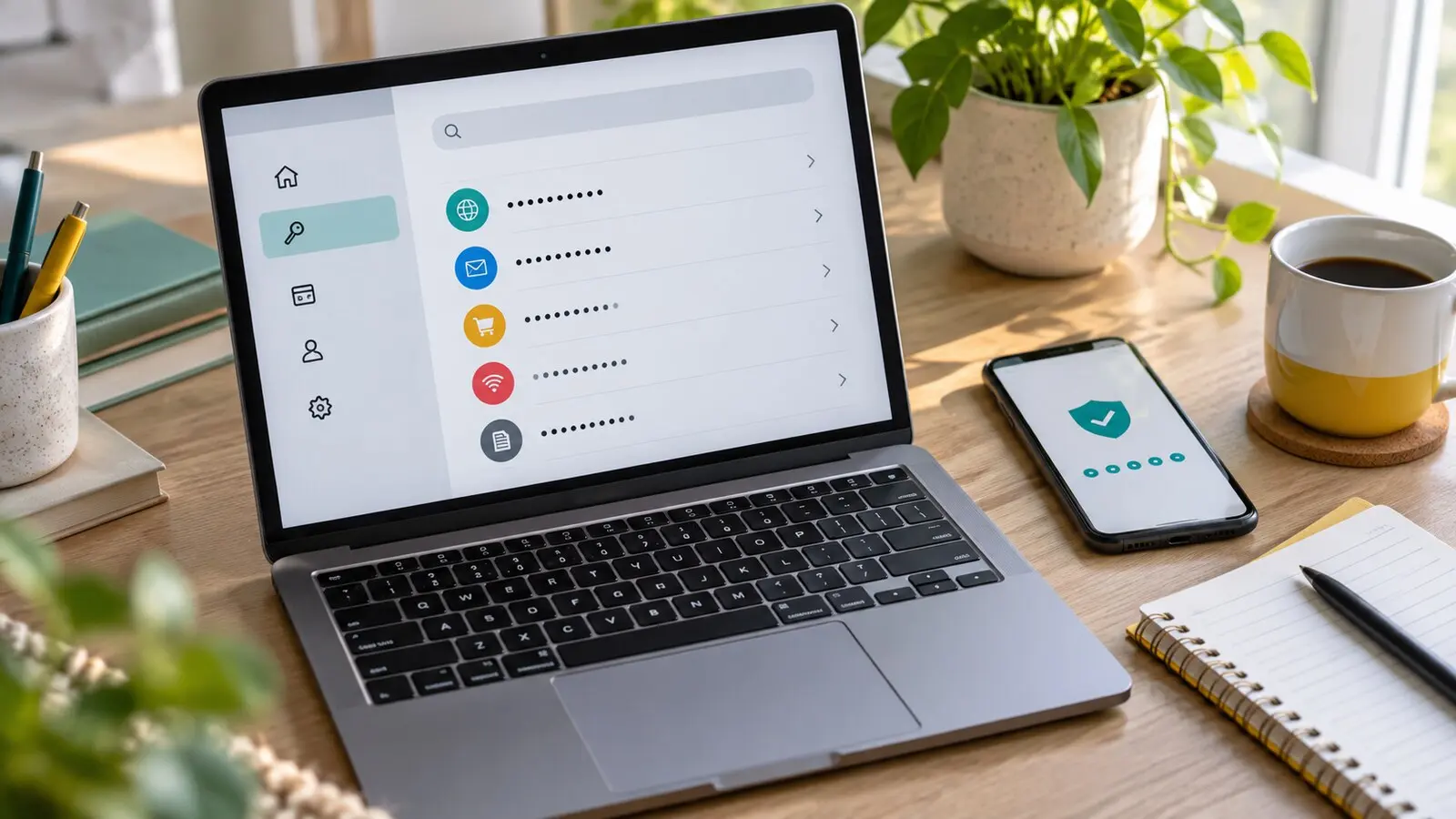
A password manager can make online life safer, but only if it is set up with a little patience. The mistake is treating it like a storage box: install the app, dump passwords into it, and hope it remembers everything forever. That approach may still leave reused passwords, weak recovery settings, old browser copies, and one very nervous question: what happens if you cannot get into the manager itself?
The better setup is calm and staged. Secure the password manager first, move accounts in a sensible order, test sign-in from more than one device, clean up old saved passwords, and prepare recovery before an emergency.
This guide is for ordinary users, families, freelancers, students, and small teams who want stronger account security without accidentally making their accounts harder to reach.
Quick Answer
Set up a password manager by choosing a reputable manager, creating a long master password or passphrase, turning on multi-factor authentication, saving recovery information securely, importing or adding passwords in stages, replacing reused passwords with unique generated ones, testing sign-in on your everyday devices, and removing unsafe duplicate password storage only after you know the new setup works. Start with email, banking, cloud storage, phone carrier, password manager, work, and social accounts.
Why A Password Manager Helps
Most people have too many accounts to remember a different strong password for each one. That creates two common risks: short passwords that are easier to guess and reused passwords that can unlock several accounts after one breach.
NIST’s consumer password guidance says password managers help by generating long, complex passwords and storing them securely so people do not need to remember or write down every password. It also warns that the password manager account itself must be protected because it controls access to many other accounts.
That is the core trade-off. A password manager reduces the need to memorize dozens of secrets, but it makes the setup account important. Treat it like a key account, not a casual app.
Choose The Kind Of Manager That Fits Your Life
There are several workable options:
- A dedicated password manager app.
- A password manager built into a browser.
- A password manager built into a phone or computer ecosystem.
- A workplace-managed password manager.
- A family plan that supports shared vaults or emergency access.
The best choice is not the one with the longest feature list. It is the one you can use consistently on the devices and browsers where you actually sign in.
Before committing, check whether the manager supports:
- Your phone, computer, browser, and operating system.
- Multi-factor authentication or passkey sign-in for the manager account.
- Password generation and autofill.
- Import from your current browser or manager.
- Export or account-recovery options you understand.
- Secure sharing if you manage household or work accounts with someone else.
- A clear process if you lose your phone, change devices, or forget your master password.
If you are choosing for a family, avoid a setup where one person privately knows every shared password and nobody else can recover important household accounts. If you are choosing for work, use the employer-approved system instead of mixing company passwords into a personal vault.
Create A Master Password You Can Actually Keep
Your master password protects the vault. It should be long, unique, and memorable enough that you do not need to store it in an obvious place.
For most people, a passphrase is easier than a short complicated password. Think in terms of length and uniqueness, not a few predictable symbol swaps. NIST emphasizes password length as a major factor and recommends passwords of at least 15 characters when a password must be used.
Do not reuse an email, banking, school, work, or device password as the master password. Do not base it on a pet name, birthday, school, street, sports team, or phrase you use on social media. If you write a recovery hint, make it helpful to you but useless to someone who knows your life.
Some password managers provide an emergency kit, recovery code, account key, or printable setup sheet. If yours does, save it according to the manager’s instructions. A sealed copy in a secure home file, safe, or trusted legal folder may be more useful than hiding the only recovery clue inside the account you are trying to protect.
Turn On Stronger Sign-In For The Manager
A strong master password is not enough by itself. Turn on multi-factor authentication for the password manager account if the service supports it.
The FTC explains that two-factor authentication adds another credential beyond the password, such as an authenticator app, security key, text code, email code, or biometric approval. It also notes that authenticator apps and security keys can be safer than SMS or email codes when available.
For a password manager, prefer a strong second factor:
- A passkey if the manager supports it and you understand recovery.
- A security key for higher-risk accounts.
- An authenticator app with backup codes saved safely.
- A text or email code only when stronger options are unavailable.
Do not set up MFA on the same day you discard every backup method. First confirm that you can sign in, approve the second factor, and recover if your phone is lost. Save backup codes somewhere other than the inbox or device they protect.
Import Carefully, Then Clean Up
Many people already have passwords saved in a browser, phone, or old manager. Importing can save time, but it deserves care.
Platform help pages commonly warn that exported password files, especially CSV files, may not be encrypted. Microsoft Edge, for example, cautions that exported password CSV files are visible to anyone who can see the file. Apple gives a similar warning for password imports on iPhone and advises deleting the imported file after use.
Use this migration pattern:
- Export passwords only on a private, trusted device.
- Save the export file somewhere local and temporary, not in a shared cloud folder.
- Import it into the new manager.
- Confirm the accounts appear correctly.
- Permanently delete the export file after the import is finished.
- Empty trash or recycle bin if the file went there.
Do not email the export file to yourself. Do not upload it to a public converter. Do not leave it in downloads, screenshots, chat apps, or a shared family computer.
After import, expect cleanup. Old password collections often contain duplicates, abandoned accounts, misspelled websites, expired passwords, and logins saved under the wrong domain. That is normal. The first goal is to move safely, not perfectly.
Fix The Most Important Accounts First
Do not try to repair every login in one sitting. Start where account loss would hurt most.
A sensible first group includes:
- Primary email.
- Password manager account.
- Banking, payment, and mobile money accounts.
- Phone carrier account.
- Cloud storage and photo backup accounts.
- Apple, Google, Microsoft, or other device ecosystem accounts.
- Work or school accounts.
- Social media accounts used for business, identity, or communication.
- Government, tax, health, or immigration portals.
For each one, save the login in the manager, change reused or weak passwords, turn on MFA, and update recovery email and phone details. If the service supports passkeys, consider adding one after you understand how recovery works. GDU’s guide to starting with passkeys without lockout covers that next step.
Lower-priority accounts can wait. A newsletter account, old forum login, or one-time shopping profile does not need the same first-day attention as email or banking.
Test Before You Trust It Completely
A password manager setup is not finished until you have tested it.
Check that you can:
- Unlock the manager on your main phone.
- Unlock it on your main computer.
- Use autofill in your preferred browser.
- Search for an account manually when autofill fails.
- Copy a password safely when an app does not accept autofill.
- Sign in to your primary email from a browser.
- Complete MFA after signing in.
- Find backup codes or recovery instructions.
Then do a small real test. Pick one non-critical account, sign out, sign back in using the manager, and confirm that the saved password works. Repeat with one important account when you are calm and have enough time to solve a problem.
This is also when you check lock settings. A manager that locks immediately may frustrate you. A manager that stays open all day on a shared computer may expose too much. Choose a timeout that fits the device. A private laptop can use a different setting from a family tablet or office computer.
Remove Old Copies Gradually
Once the manager is working, reduce scattered password storage.
Browser-saved passwords, screenshots, sticky notes, old CSV files, notes apps, spreadsheets, chat messages, and email drafts can all become hidden copies. Clean them up carefully. Do not delete the only working copy of a password until the new manager has been tested.
If you previously saved passwords in a browser, decide whether the browser will remain your main manager or whether it should stop offering to save new passwords. If the browser and the dedicated manager both offer autofill, you may see duplicate prompts. That can cause confusion and accidental saving in the wrong place.
Also review shared devices. Remove saved passwords from borrowed computers, public computers, old phones, and devices you are selling or giving away. GDU’s guide to wiping an old phone or laptop before handing it over is useful when a device is leaving your control entirely.
Plan For Family, Travel, And Emergencies
Password managers are personal, but life is not always individual. Think about who needs access to what, and when.
For shared household accounts, use secure sharing features where available instead of sending passwords in messages. For emergencies, consider whether the manager offers emergency access, trusted contacts, recovery codes, or family recovery. For travel, make sure you can unlock the manager if your usual phone is lost, stolen, damaged, or offline.
Do not give everyone access to everything. A shared streaming account is different from a bank account, work email, or medical portal. Keep sensitive personal accounts separate and document emergency steps only for people who genuinely need them.
If you already maintain an emergency folder, record where recovery instructions are stored without writing full passwords in plain sight. GDU’s guide to account recovery as part of the login system can help you decide which recovery paths deserve attention.
Common Mistakes To Avoid
The first mistake is using the password manager while leaving reused passwords unchanged. Importing old passwords is only the start. The security gain comes when important accounts get unique passwords.
The second mistake is protecting the vault with weak MFA or no MFA. If the manager supports stronger sign-in, use it.
The third mistake is losing the recovery path. A master password, passkey, security key, authenticator app, and recovery code all need a plan. Strong security should not depend on one fragile device.
The fourth mistake is leaving exported CSV files behind. Treat password exports as highly sensitive and temporary.
The fifth mistake is ignoring the primary email account. Email resets many other accounts, so secure it early with a unique password, MFA, current recovery details, and saved backup codes.
A Simple Setup Checklist
Before you call the job done, confirm these points:
- The manager works on your main phone and computer.
- The master password is long, unique, and memorable.
- MFA is enabled for the manager account.
- Recovery codes or emergency instructions are stored safely.
- Primary email has a unique password and MFA.
- Banking, payment, cloud, and phone carrier accounts have been reviewed.
- Imported password files have been deleted.
- Old browser or device password prompts are no longer confusing you.
- Shared accounts are handled through secure sharing where possible.
- You know what to do if your phone is lost.
A password manager is not a one-day perfection project. It is a safer home for account access. Start with the accounts that matter most, test each step, and clean up old copies as confidence grows. The result should feel less like a locked vault you are afraid to touch and more like a reliable system you can use every day.