Notifications are useful until they become background noise. A delivery update, a bank alert, a school message, a work mention, a calendar reminder, a software prompt, a group chat reaction, and a shopping discount can all arrive with the same urgency on the same screen. After a while, the problem is not only distraction. It is that important messages become harder to notice.
The goal is not to turn everything off. A good notification system should help you respond quickly when something truly matters and ignore the rest until a better time. That takes a little setup, but it does not require a new app, a perfect productivity routine, or a dramatic digital detox.
Quick Answer
Reduce notification overload by auditing which apps can interrupt you, turning off low-value alerts, allowing only priority people and apps during focus periods, batching newsletters and promotions, hiding sensitive lock-screen previews, and reviewing missed notifications at set times. Keep urgent channels such as calls from key contacts, calendar reminders, security alerts, banking alerts, and emergency warnings easy to see.
Start With A One-Day Notification Audit
Before changing settings, pay attention for one normal day. Each time your phone, computer, watch, or tablet interrupts you, ask one question: did this need my attention now?
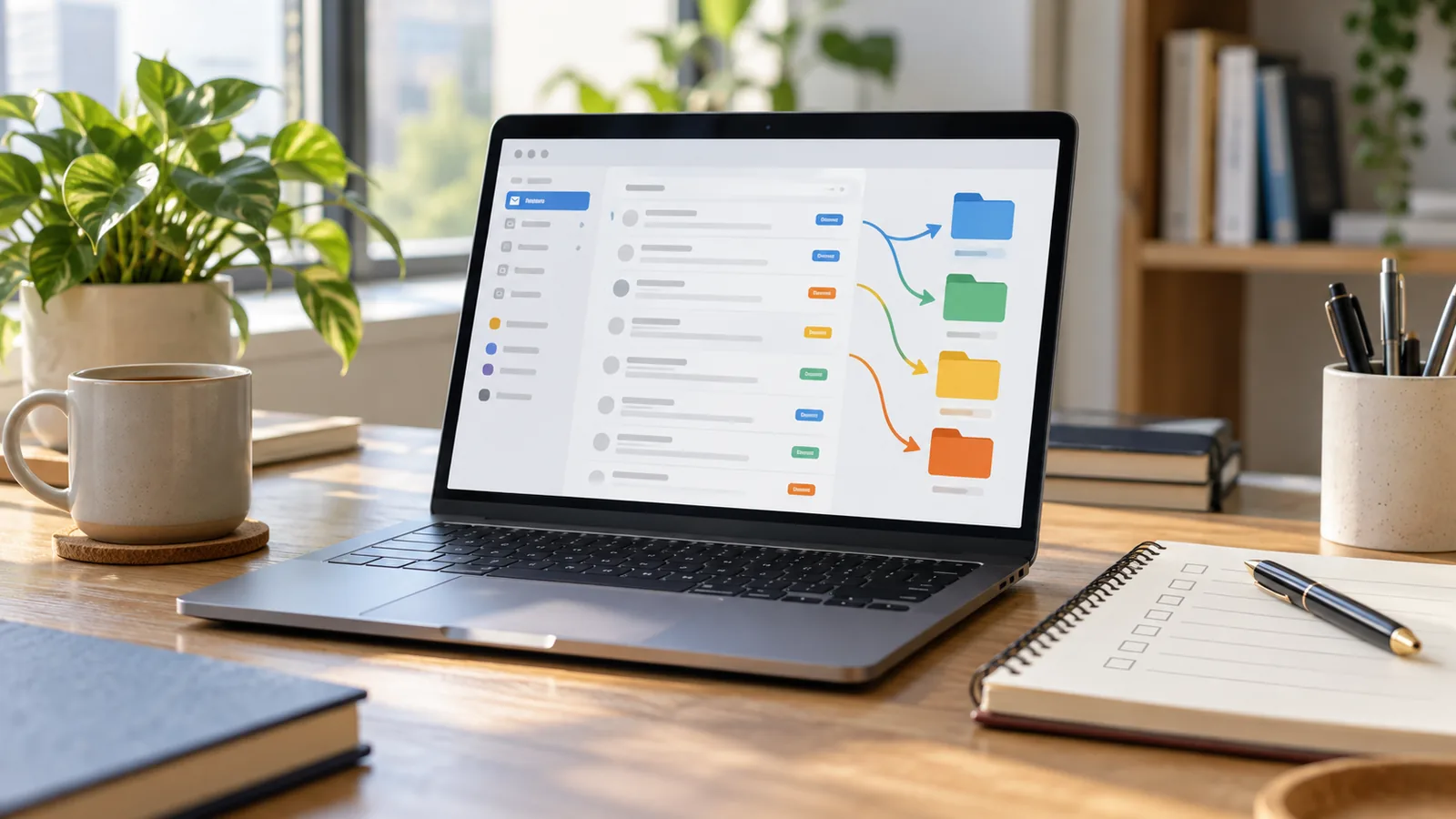
Put each alert into one of four groups:
- Urgent: calls from family, school, caregivers, work incidents, travel disruption, fraud alerts, two-factor prompts you requested, calendar reminders before a meeting.
- Important but not instant: email from a client, project updates, bill reminders, delivery information, documents awaiting review.
- Useful later: newsletters, sale alerts, app tips, social updates, podcast releases, streaming recommendations.
- Noise: repeated badges, streak reminders, engagement prompts, duplicate alerts across devices, app promotions, alerts from services you no longer use.
This audit keeps the cleanup practical. You are not deciding whether an app is good or bad. You are deciding whether it deserves the power to interrupt you.
Choose Your Priority Channels
Most notification overload comes from treating every app as equally important. Instead, decide which channels are allowed to break through when you are working, sleeping, studying, driving, caring for someone, exercising, or spending time offline.
Priority channels often include:
- Calls or messages from close family, caregivers, school, key colleagues, or emergency contacts.
- Calendar reminders that give enough time to join or travel.
- Security alerts from banks, password managers, cloud accounts, and device accounts.
- Work systems where you are on call or responsible for live operations.
- Health, accessibility, medication, transport, or safety alerts that are genuinely time-sensitive.
Be strict. A shopping app does not become urgent because it says an offer ends tonight. A social app does not become urgent because someone reacted to an old post. A work chat does not become urgent simply because it is noisy.
If you are unsure, ask: what would happen if I saw this in two hours? If the answer is “almost nothing,” it probably belongs outside your interruption list.
Turn Off The Lowest-Value Alerts First
Do the easy cleanup before building complex rules. Open notification settings and remove permission from apps that mainly send promotions, recommendations, engagement prompts, badges, or content suggestions.
Start with:
- Shopping and food-delivery promotions.
- Games and streak reminders.
- News alerts that duplicate email newsletters or websites you already check.
- Social-media likes, reactions, suggested posts, and “people you may know” prompts.
- Apps you installed for a one-time purpose.
- Duplicate alerts from both mobile and desktop when one device is enough.
On phones, you can usually control notifications per app. On computers, you can do the same through system notification settings. Microsoft describes Windows notifications as banners and notification-center items that can be customized by app, priority, and style. That distinction is useful: some apps may deserve a quiet notification center entry but not a banner, sound, badge, or lock-screen preview.
Use Focus Or Do Not Disturb As A Filter
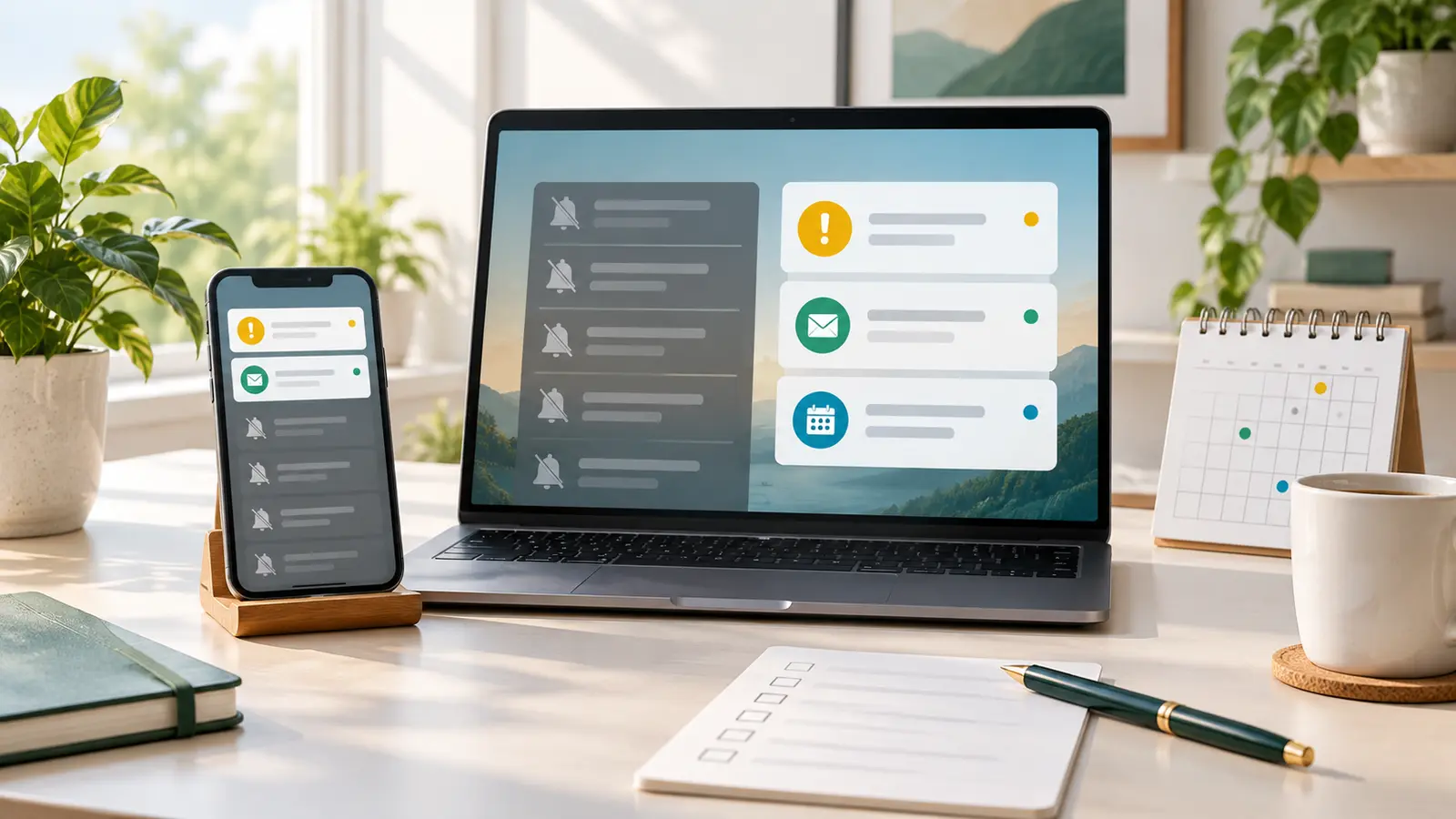
Focus modes and Do Not Disturb settings are most useful when they are filters, not emergency shutoff switches. The aim is to decide who and what can interrupt you during a specific context.
On Android, Google says Modes and Do Not Disturb can silence the device and manage when and how you want to be notified. Android settings commonly allow people, apps, alarms, reminders, calendar events, repeat callers, and hidden notification behavior to be customized, although exact steps vary by device.
On Windows, Do Not Disturb can silence notifications manually or automatically during certain times, games, full-screen apps, display duplication, or focus sessions. Microsoft also notes that priority notifications can allow selected calls, reminders, or apps while other alerts go to the notification center.
On iPhone, iPad, and Mac, Apple’s Focus tools let users control interruptions by context. The exact labels change across software versions, but the idea is similar: allow the people and apps you choose, schedule the mode, and reduce distractions without blocking everything.
Useful modes might include:
- Work: allow calendar, selected work apps, family calls, and critical security alerts.
- Deep Focus: allow only urgent contacts, alarms, and calendar reminders.
- Sleep: allow emergency contacts, repeat calls if appropriate, alarms, and essential health alerts.
- Driving: allow navigation, urgent calls through hands-free systems, and safety alerts.
- Personal Time: allow family and friends, but silence work apps.
Keep modes simple at first. One well-designed Work mode is better than seven modes you never trust.
Let People Through Carefully
The best notification setup is human-aware. Apps are noisy, but people can be urgent.
Create a small allowed list for calls and messages. Include people who may need to reach you quickly: partner, children, parents, caregivers, school contacts, close colleagues, or anyone connected to health, safety, travel, or urgent household matters.
Then decide how repeat calls should work. Many systems can allow a second call from the same person within a short period to break through Do Not Disturb. That can be useful for emergencies, but it may also let persistent non-urgent callers interrupt you. Use it based on your real life, not a generic rule.
For messaging apps, consider pinning or prioritizing important conversations while muting large groups. Group chats often create volume without urgency. If a group is useful but noisy, mute it and check it at set times.
Batch Everything That Can Wait
Some notifications are useful but should not arrive all day. Email newsletters, account summaries, app digests, shopping updates, creator uploads, reading recommendations, and non-urgent work updates can often be batched.
Batching can mean:
- Turning off push alerts and checking the app twice a day.
- Using email filters or folders.
- Creating scheduled notification summaries where your device supports them.
- Muting channels except for mentions or direct messages.
- Moving newsletters into a read-later address or folder.
- Setting a daily admin block for bills, receipts, order updates, and forms.
The benefit is trust. When fewer alerts arrive, the ones that remain feel meaningful. You are less likely to reflexively dismiss an important banking message because it arrived after five promotional banners.
Protect Privacy On The Lock Screen
Notification overload is not only about attention. It is also about privacy. Lock-screen previews can expose message content, delivery locations, travel plans, one-time codes, calendar details, financial alerts, and personal reminders to anyone nearby.
Review lock-screen settings on each device. Consider hiding message previews until the device is unlocked, especially for banking, email, work chat, health, and family apps. You can still allow the notification to appear without showing sensitive content.
This is especially important if you commute, share a household device, use a smartwatch, work in public places, or often leave a phone on a table. GDU’s guide to cleaning up app permissions on your phone is a useful companion step because the same apps that interrupt you may also have old access to location, photos, microphone, contacts, or background activity.
Reduce Duplicate Alerts Across Devices
Many people are not interrupted by one notification. They are interrupted by the same notification on a phone, laptop, tablet, watch, and browser.
Pick a primary device for each alert type. For example:
- Calls and urgent messages on phone and watch.
- Calendar reminders on phone and computer.
- Work chat banners on computer during work hours only.
- Email badges off everywhere, with scheduled email checks.
- Banking and security alerts on phone, with email as backup.
Also check browser notifications. Websites often request permission to send alerts, and many people accept without meaning to. Remove notification permission from sites that do not need real-time access to you. While you are there, GDU’s guide to auditing browser extension permissions can help reduce another source of quiet digital clutter.
Create A Recovery Habit
People worry that if they silence notifications, they will miss something important. Solve that fear with a review habit.
Choose predictable times to scan missed alerts: mid-morning, after lunch, late afternoon, and evening, or whatever fits your schedule. During each scan, clear old notifications, reply to what matters, and adjust settings when a noisy app breaks your rules.
For work, agree on escalation rules where possible. A team might decide that chat is for routine updates, calls are for urgent incidents, and project tools are for tasks that do not need instant response. Without shared expectations, notification settings can become a private defense against a public workflow problem.
Use Attention Science As A Reminder, Not A Weapon
Research on multitasking and task switching shows that switching attention has a cost, especially when tasks are complex or unfamiliar. The American Psychological Association has long warned that multitasking can make people less efficient because the brain needs time to shift between tasks.
That does not mean every interruption is harmful or every message should wait. Life includes emergencies, caregiving, collaboration, and real-time coordination. The practical lesson is simpler: if a notification does not help you act now, it should not repeatedly pull you away from what you are doing.
A Simple Notification Cleanup Checklist
Use this once a month:
- Remove notification permission from apps you no longer need.
- Turn off promotional, recommendation, and engagement alerts.
- Allow priority people and apps in Focus or Do Not Disturb modes.
- Hide sensitive lock-screen previews.
- Mute noisy group chats.
- Stop duplicate alerts across devices.
- Review browser notification permissions.
- Keep banking, security, calendar, health, travel, and emergency alerts visible.
- Check missed notifications at planned times.
- Adjust rules after real misses or false alarms.
Bottom Line
A calmer notification system does not make you unreachable. It makes you easier to reach for the right reasons.
Start by removing obvious noise, then build priority rules around the people, reminders, security alerts, and responsibilities that truly need fast attention. When your devices interrupt you less often, you can trust the interruptions that remain.