A timer is most useful when you know exactly what to do when it rings. “Check the vegetables” is clearer than an unexplained countdown, especially when another dish is already underway. A few minutes spent setting up phone kitchen timers can make everyday cooking reminders easier to follow.
Start with your phone’s existing Clock app. Check its sound before relying on it, name each task where the app allows it, and treat the alert as a prompt to inspect or act. Elapsed time alone does not establish that food is cooked safely.
Set Up the Alert Before Starting Dinner
Phone models and Clock apps differ. Find the Timer or Timers area rather than assuming an alarm or stopwatch does the same job. A timer counts down a duration; an alarm is for a particular time, while a stopwatch records elapsed time.
Try the controls while the kitchen is quiet and nothing needs your immediate attention. This is a practical setup sequence:
- Choose a short test countdown. Enter a few seconds, check the units and press Start. Watch the number decrease so you know it is actually running.
- Listen from your normal cooking position. Put the phone where it will stay and check whether you notice the alert over ordinary kitchen noise. Adjust the relevant sound and volume settings, then repeat the test if needed.
- Choose a useful label. Where labels are available, name the action: “Check tray” or “Stir sauce.” A description of what happens next is more helpful than “Dinner.”
- End the test and clear it. Confirm how to stop the sound and remove the completed countdown. An old timer should not look like part of the next meal.
Do not assume music volume is the setting that controls your timer. Check the options for your particular app and test the result. If you rely on vibration or another accessibility feature, check that signal in the way you will actually use it.
Find the Settings on Your Phone
On current iPhone software, open Clock and choose Timers. Apple documents custom durations, labels and sounds, as well as multiple timers. Set the duration and label, select a sound, and start the countdown. Check that you have selected an audible alert rather than the Stop Playing option, which is intended to stop media playback.
In Google’s Clock app, timer sound is under More, Settings, then Timers. Google also documents a gradually increasing sound option and vibration where supported. Other Android manufacturers may provide a different Clock app, so the wording and available controls can vary.
If the screen does not match these descriptions, consult the help for the installed app. There is no need to install another timer app simply because a button has moved. First establish whether the built-in tool offers the reminders you need.
Give Overlapping Tasks Separate Names
When your app supports multiple timers, use one countdown for each task that genuinely needs a separate reminder. Avoid keeping one running total in your head and repeatedly subtracting minutes while cooking.
For example, imagine a recipe that asks you to inspect an oven tray after a specified interval while another ingredient rests. You could label one reminder “Check oven tray” and another “Resting step finished.” Use the intervals in the recipe or product instructions; these labels do not supply cooking times.
Start each countdown when its own step begins. Starting all timers at the beginning of the recipe can make the alerts unrelated to the food’s actual progress. Read back the duration and label after creating each one, particularly if you used voice input.
Two people sharing a kitchen should also agree who responds. A quick “I will check the tray when that rings” avoids both people assuming the other has handled it. If your app supports only one countdown, simplify the cooking sequence or use a separate kitchen timer for the second task.
Keep the Phone Visible and the Next Action Simple
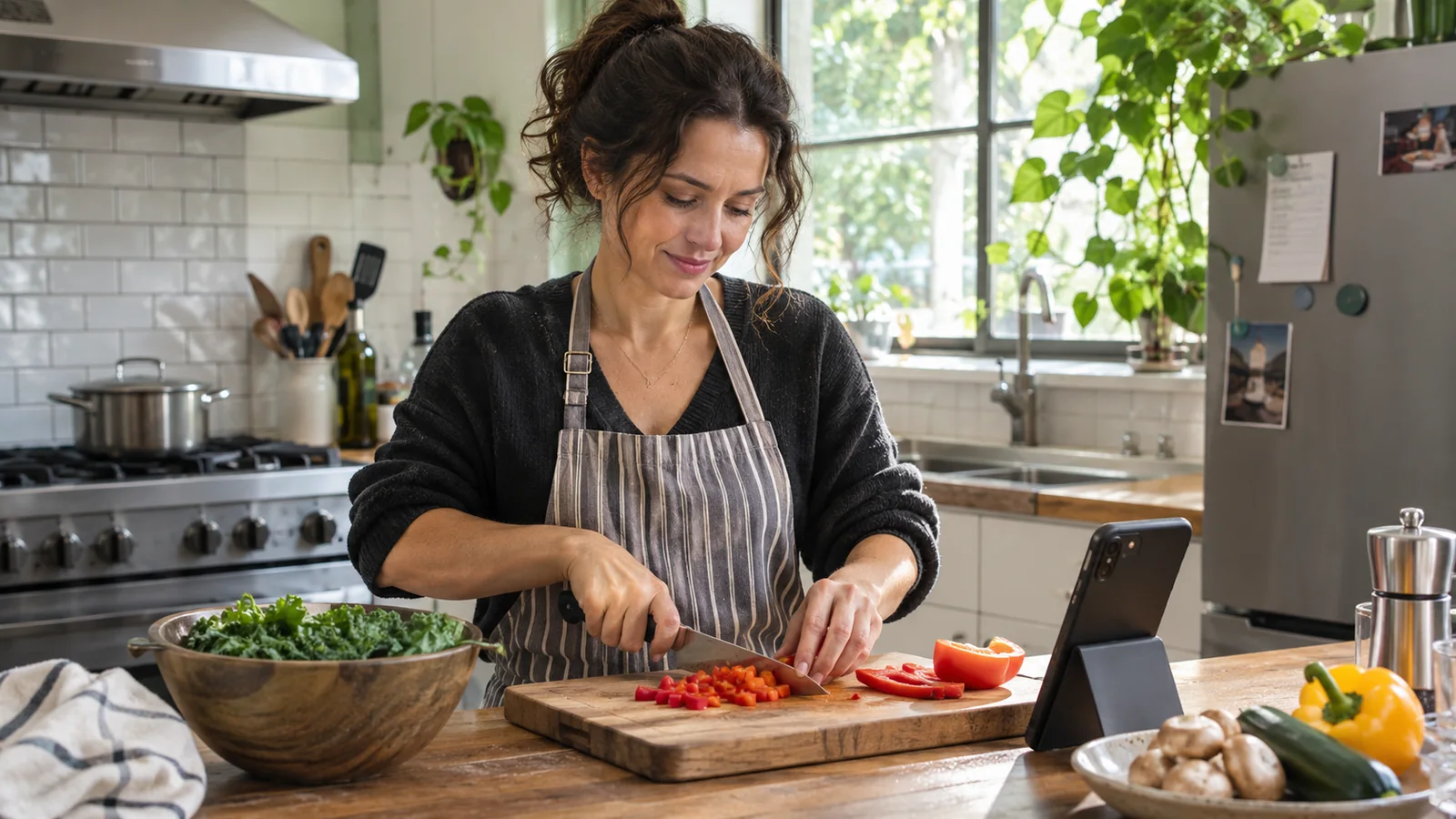
Choose a dry, stable spot away from the sink, hot surfaces and the edge of the counter. A stand can keep the screen visible without occupying the preparation area. Arrange the recipe and controls before your hands become wet or covered in ingredients.
Keep unrelated phone tasks out of the cooking sequence. Opening a message when you meant to check the countdown can leave the original job unfinished. If an alert interrupts another task, return to the food first, then decide whether anything else needs attention.
When a reminder sounds, identify the label, perform the action and end that countdown. If the food needs more time, make a deliberate decision about the next check and start a fresh reminder. Repeatedly dismissing an alert without checking removes its practical value.
Use the Timer Alongside Cooking Checks
A countdown cannot see a pan, measure a food’s temperature or decide whether a burner is safe to leave. Stay with cooking that needs close attention. If you leave the kitchen, turn the burner off. A phone reminder is not a substitute for supervision.
Follow the food’s instructions and appropriate doneness checks. For meat and poultry, use a food thermometer and the safe internal temperature guidance relevant to the food. A timer can prompt that measurement, but it cannot replace it. Appearance or the end of a countdown is not proof of safety.
The same distinction applies to preparation reminders. Our guide to thawing frozen food safely covers choosing a suitable method; setting an alert does not make an unsuitable thawing method safe. For an ordinary pasta dinner, measuring the dry amount first handles the quantity question before the cooking countdown begins.
Finish by clearing completed timers and checking that appliances are off when cooking is done. For the next meal, keep the arrangement simple: an alert you can notice, a label you understand and a clear action when it sounds.