Most people know they should improve online security, but the task can feel endless. Every account has a password, recovery email, device list, alert setting, privacy menu, and new feature to review.
A personal security checkup makes the job smaller. Instead of trying to fix your entire digital life in one weekend, spend one focused hour on the accounts that matter most: email, phone carrier, password manager, banking, cloud storage, work, social media, government, school, and any account that can reset or damage the others.
The goal is to close obvious gaps, confirm you can recover important accounts, and list anything that needs more time.
Minute 0-5: Choose Key Accounts
Start by making a short priority list. Do not open every app you own. Pick five to eight accounts where takeover would be expensive, embarrassing, disruptive, or hard to recover from.
Prioritize:
- Primary email, because it resets many other accounts.
- Password manager, if you use one.
- Phone carrier or mobile account, because phone numbers may be used for recovery or login codes.
- Banking, payment, investment, tax, payroll, or benefits accounts.
- Cloud storage and device ecosystem accounts.
- Work, school, or business administrator accounts.
- Social media accounts with public reach, ads, pages, or business messages.
- Domain, website, marketplace, or seller accounts if you run a business.
If an account offers its own security checkup, use it as a starting point. Many major platforms, password managers, banks, and workplace systems show recent sign-ins, devices, verification methods, and recovery settings.
Minute 5-15: Check Passwords and Password Managers
Start with passwords because reused passwords turn one breach into many account takeovers. CISA’s Secure Our World guidance recommends strong passwords, password managers, multifactor authentication, software updates, and phishing awareness as core habits. For ordinary users, the password step is simple: important accounts should have long, unique passwords stored somewhere reliable.
Check whether your password manager or browser password tool reports:
- Reused passwords.
- Weak passwords.
- Compromised or exposed passwords.
- Old saved passwords for accounts you no longer use.
- Duplicate entries that make autofill confusing.
Do not change every weak password during this hour. Fix the highest-risk accounts first: email, password manager, banking, phone carrier, cloud storage, work, and social media. If many accounts need cleanup, schedule a second session and use GDU’s guide to setting up a password manager without locking yourself out.
When changing a password, sign out of old sessions if the service offers that option. Save the new password before closing the page. For shared accounts, use secure sharing features instead of sending the password in a chat message.
Minute 15-25: Turn On Strong Two-Factor Authentication
Two-factor authentication, often called 2FA, two-step verification, or multifactor authentication, adds another check beyond the password. The FTC says this step may be an authenticator app, security key, text code, email code, biometric approval, or another verification method.
Use the strongest option each important account supports. A security key, passkey, or authenticator app is often safer than relying only on SMS. Text-message codes can still help when no better method exists, but stronger choices should protect your most important accounts where available.
For each priority account, check:
- Is two-factor authentication turned on?
- Which method is active?
- Are backup codes available?
- Where are backup codes stored?
- Is there a second trusted method in case your phone is lost?
- Are old phone numbers or email addresses still listed?
Do not make security stronger in a way that traps you. Add and test a better recovery method before removing an old one. Save backup codes before signing out.
Minute 25-35: Review Devices and Active Sessions
Many services show signed-in devices, recent sessions, apps, browsers, or locations. This is one of the fastest ways to find stale access.
Look for:
- Phones, tablets, or laptops you sold, lost, repaired, or no longer use.
- Browsers you do not recognize.
- Sessions from old workplaces, schools, hotels, internet cafes, or borrowed devices.
- Devices with names you cannot identify.
- Apps that have account access but no longer need it.
Sign out of old sessions and remove devices you no longer control. If a sign-in looks suspicious, change the password, review recovery settings, strengthen two-factor authentication, and check whether the service offers a “secure your account” flow.
Device review is especially important for cloud storage, email, messaging, social media, banking, and password managers.
Minute 35-45: Check Recovery Details
Account recovery is part of account security. A strong password and two-factor authentication can still be undermined by an old recovery email, a recycled phone number, a trusted device you no longer own, or backup codes saved inside the account they are meant to protect.
For each high-value account, verify:
- Recovery email address.
- Recovery phone number.
- Backup codes.
- Trusted devices.
- Emergency contacts or trusted contacts.
- Security questions, if the service still uses them.
- Account recovery key, emergency kit, or printable recovery sheet.
Remove outdated information. Add a current recovery method before deleting the old one. Store backup codes in a password manager, encrypted file, printed emergency folder, or another secure place you can reach during a lockout.
GDU’s guide to account recovery as part of the login system explains why recovery paths deserve the same attention as passwords.
Minute 45-52: Turn On Alerts and Reduce Quiet Risk
Security alerts are useful only if they reach you. Check whether important accounts can notify you about new sign-ins, password changes, recovery changes, payment changes, device additions, or suspicious activity.
Enable alerts for:
- New sign-ins from unfamiliar devices.
- Password or two-factor changes.
- Recovery email or phone changes.
- Bank transfers, card payments, or profile changes.
- Cloud sharing changes.
- New administrator users, business page roles, or ad account access.
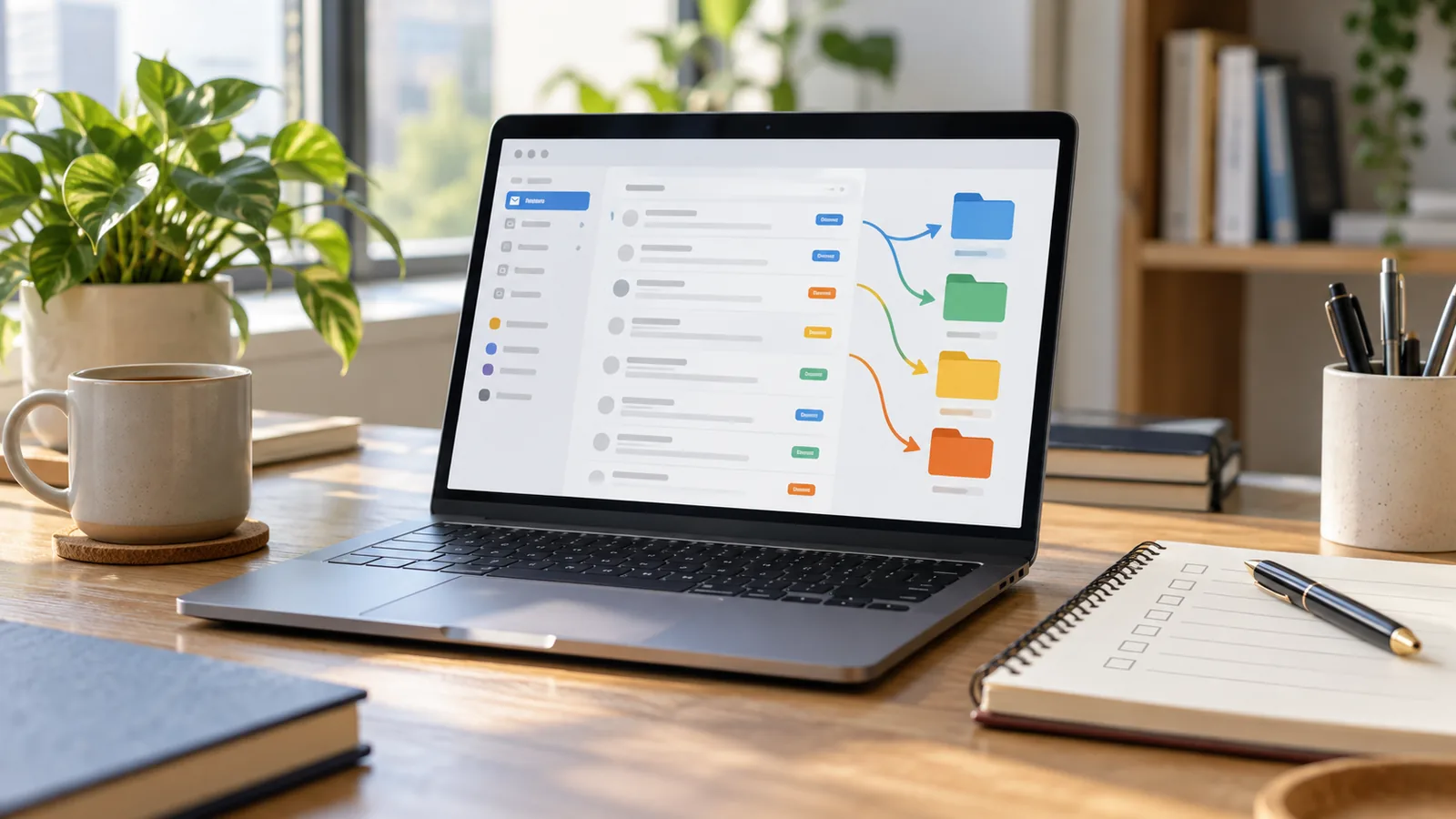
Then check quiet settings. In email, look for forwarding rules, filters, delegated access, and connected apps. In cloud storage, review shared links. In social media and business tools, review page roles, third-party apps, and ad account access. In payment accounts, review saved cards, trusted merchants, automatic payments, and payout details.
These settings rarely appear on the login screen, but an old rule or app can keep access longer than intended.
Minute 52-60: Update Devices and Record Follow-Ups
Use the final minutes to check the basics:
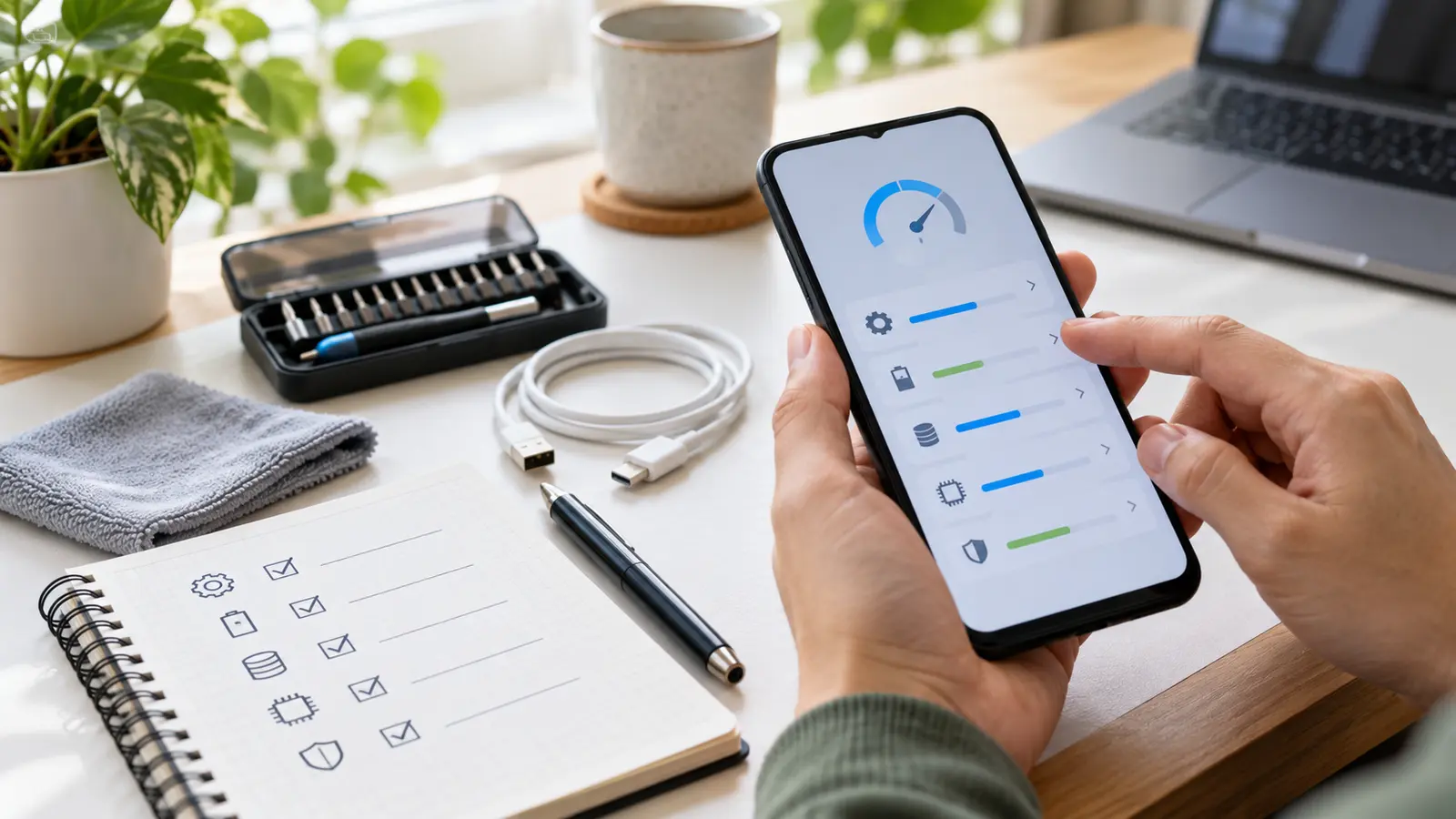
- Confirm your phone, computer, browser, and password manager are updated.
- Turn on automatic updates where you trust the source and device.
- Check that screen lock, device encryption, and biometric unlock are enabled where appropriate.
- Make sure your main phone number and email inbox are protected, because they receive alerts and recovery messages.
- Write down anything that needs a longer session.
Your follow-up list might include changing reused passwords, moving to a password manager, replacing SMS-only 2FA, reviewing family access, cleaning old sharing links, or checking whether your email appears in a known data breach. GDU’s guide to checking an email data breach can help if a password tool or breach alert flags a problem.
One-Hour Security Checklist
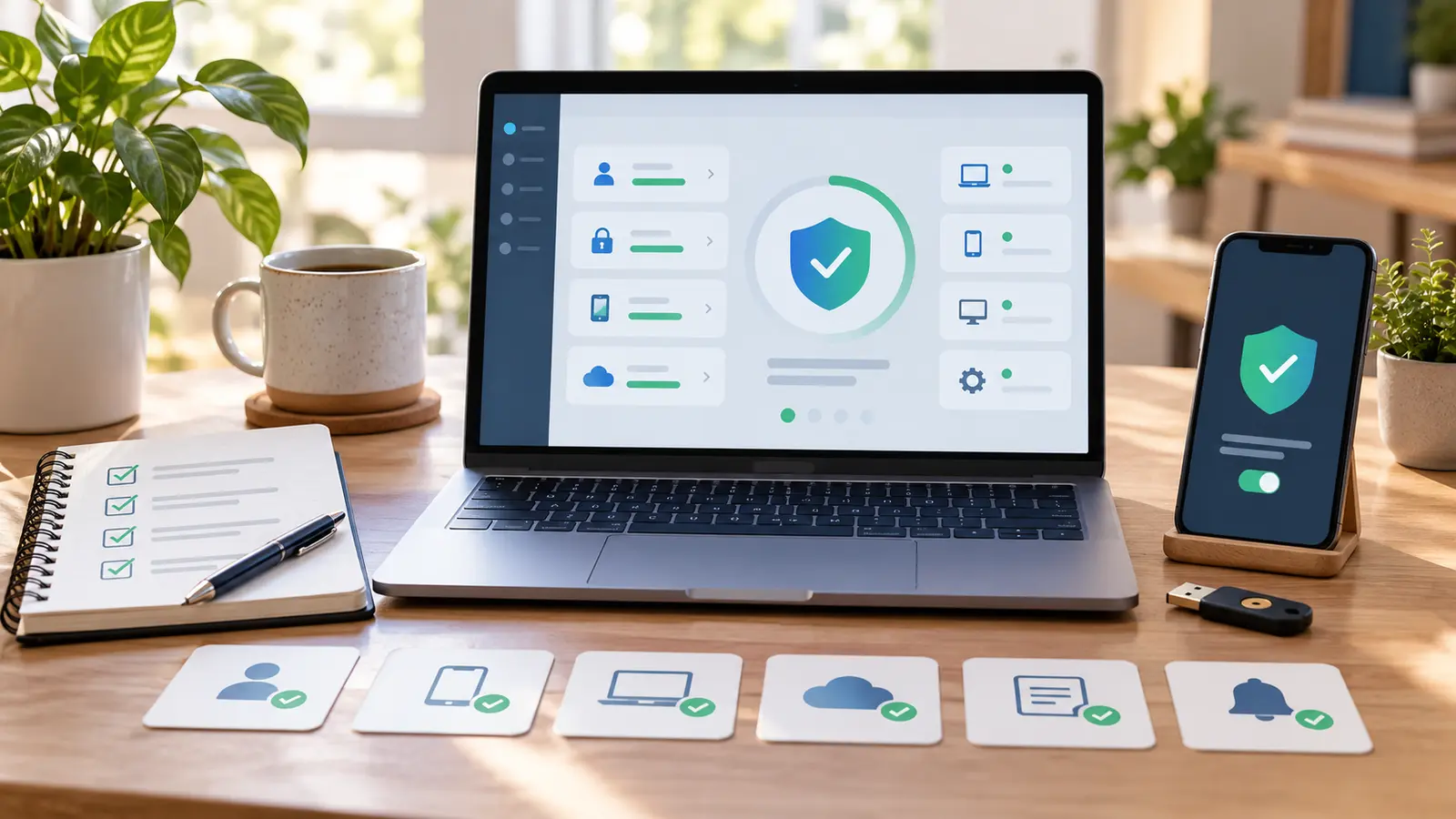
Use this sequence when you want a repeatable check:
- Pick five to eight important accounts.
- Check for reused, weak, or exposed passwords.
- Turn on strong two-factor authentication.
- Save backup codes securely.
- Remove old devices and sessions.
- Review recovery email, phone, trusted devices, and emergency codes.
- Turn on important security alerts.
- Check email forwarding, connected apps, shared links, and account roles.
- Update phones, computers, browsers, and password managers.
- Save a short follow-up list for anything that needs more time.
Do this every few months, after changing phones, after a data breach notice, after leaving a job, or after suspicious account activity.
Common Mistakes to Avoid
The first mistake is starting with low-risk accounts. A shopping newsletter login can wait. Primary email, phone carrier, banking, password manager, cloud storage, and work accounts come first.
The second mistake is removing old recovery options before testing new ones. That can turn an improvement into a lockout problem.
The third mistake is relying only on memory. Keep a short record of where backup codes and recovery instructions are stored, without leaving full passwords in plain sight.
The fourth mistake is ignoring alerts. If security warnings go to an inbox you never check, they are not doing much work.
The fifth mistake is treating the checkup as a one-time rescue. Personal security changes as devices, jobs, phone numbers, access needs, apps, and accounts change.
The Practical Takeaway
A personal security checkup does not need to consume a weekend. One focused hour can close obvious gaps: reused passwords, missing two-factor authentication, old devices, stale recovery details, silent forwarding rules, risky connected apps, and missed alerts.
Start with the accounts that can reset or protect the rest. Make important accounts harder to steal and easier to recover. Come back later for lower-risk cleanup.