An overloaded inbox often feels like a personal discipline problem, but much of the pressure comes from treating every message as equal. A payslip, client reply, school notice, shipping alert, newsletter, calendar update, security warning, receipt, and promotional offer all arrive in the same place with the same visual weight.
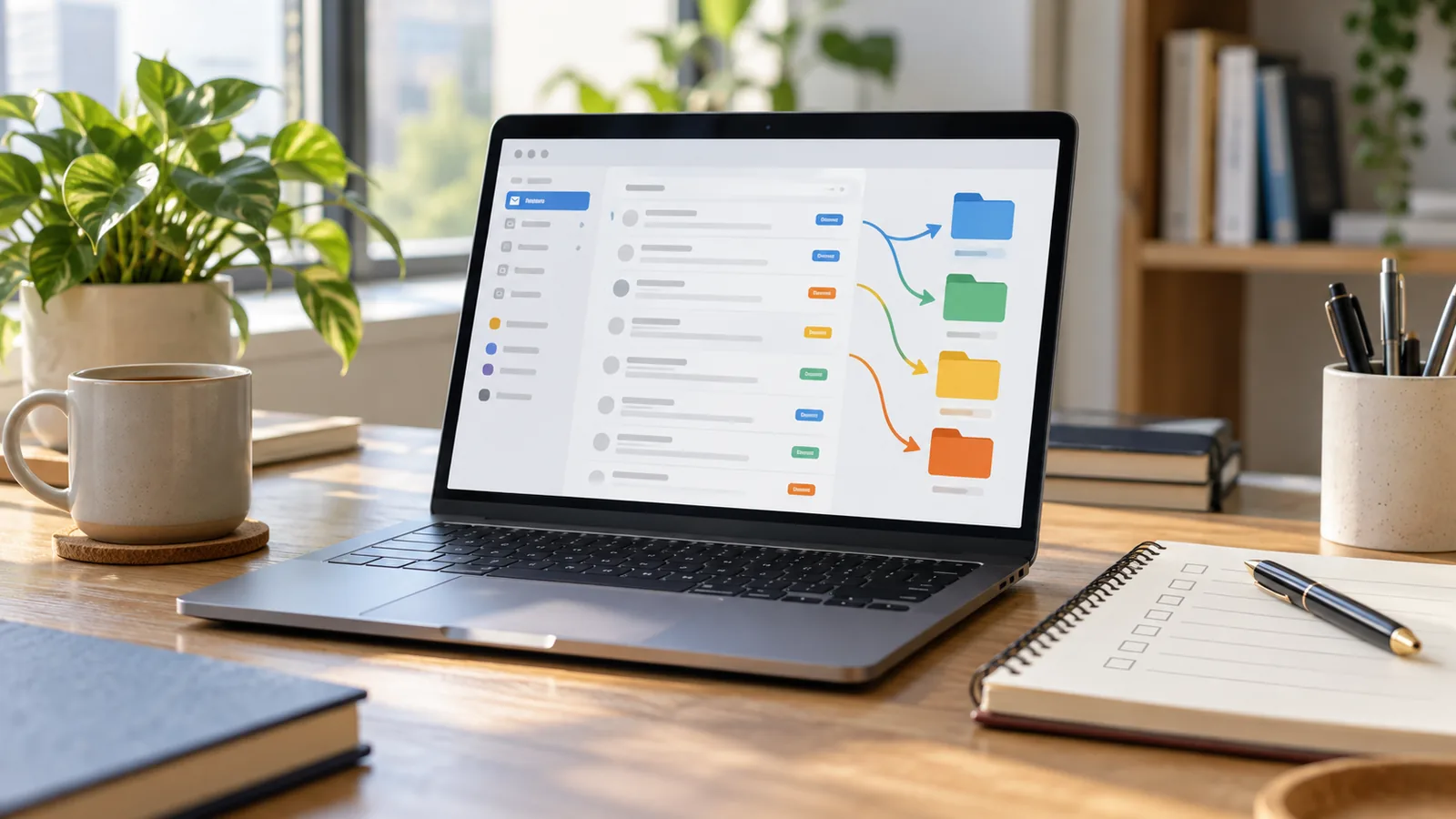
Email rules change that. A rule, filter, or automation tells your mail app what to do when a message matches certain conditions. It can apply a label, move the message to a folder, archive it, star it, forward it, mark it as important, or delete it, depending on the service and settings you use.
The goal is not to build a complicated system. The goal is to make the inbox show what deserves attention now, while lower-priority messages are still easy to find later.
Start With the Messages That Repeat
Do not begin by creating a folder for every possible topic. Start with repeat messages that arrive often and are easy to recognize.
Good first candidates include:
- Newsletters you still want but do not need immediately.
- Receipts and invoices.
- Delivery and travel confirmations.
- Bank, card, or wallet alerts.
- School, club, building, or community notices.
- Project updates from a known sender or domain.
- Calendar invitations and meeting updates.
- Automated reports, ticket updates, or system alerts.
Avoid making rules for rare messages. If something appears twice a year, manual search is usually enough. Rules are most useful when they remove a recurring decision.
Decide What Should Stay in the Inbox
Before creating rules, define what the inbox is for. A good working rule is: the inbox should contain messages that may need a reply, decision, payment, review, or time-sensitive action.
That means some messages should remain visible:
- Direct messages from people you work with.
- Customer, client, manager, teacher, landlord, doctor, bank, or legal messages that may require action.
- Security alerts about sign-ins, password resets, payment changes, or account recovery.
- Anything connected to a deadline.
Other messages can usually skip the inbox or receive a label:
- Newsletters.
- Purchase receipts.
- Routine shipping updates.
- Software release notes.
- Automated copies of forms.
- Low-priority internal announcements.
This distinction prevents the most common mistake: making the inbox look clean by hiding things that still need judgment.
Use a Small Set of Folders or Labels
Folders and labels should make retrieval easier, not become another chore. In Outlook and many desktop mail apps, a rule can move messages to folders. In Gmail, filters can apply labels, archive messages, star messages, delete messages, or forward messages to verified addresses. Thunderbird also supports message filters that run actions automatically and can be ordered by priority.
Use broad destinations at first:
Action: messages that need a reply or decision.Waiting: messages where someone else owes you a response.Receipts: purchases, invoices, and payment confirmations.Newsletters: reading material you choose to keep.Travel: booking confirmations, tickets, visas, and itinerary updates.Projects: active work, study, or client threads.Reference: policies, instructions, documents, and account notices.
If you create too many folders, you may spend more time deciding where mail belongs than reading it. A small structure is easier to trust.
Build Rules From Real Messages
The safest way to create an email rule is to start from an actual message. Most mail apps let you create a rule or filter from a sender, subject line, recipient, keyword, mailing list, or other message detail.
Use precise conditions:
- Sender address, not just display name.
- Sender domain when the whole organization is relevant.
- Subject phrase only when it is stable.
- Recipient address if you use different aliases.
- List header or newsletter sender when available.
- Words that clearly identify a receipt, statement, or automated report.
Be cautious with broad keywords. A rule that catches every message containing “invoice” may catch a real payment dispute, a scam warning, or a client question that needs a reply. It may be better to combine conditions, such as sender plus subject phrase, or domain plus recipient alias.
For work systems, ask whether your organization has retention, compliance, or security rules before automatically deleting or forwarding messages. Personal productivity should not break records, privacy, or workplace policy.
Do Not Automate Security Alerts Away
Some messages are noisy but important. Account alerts, password reset requests, suspicious sign-in notices, bank warnings, two-factor authentication changes, recovery email changes, and payment-method updates should not disappear into a folder you rarely check.
If you want to label them, make the rule increase visibility rather than reduce it. For example, apply a security label, star the message, or keep it in the inbox while also filing a copy. If an alert looks suspicious, go to the service directly through your browser or app instead of clicking links inside the email.
This is especially important if your email account is used for account recovery. GDU’s guide to setting up a password manager can help you separate login storage from inbox searching, while the upcoming security checkup slot will cover account review in more depth.
Make Unsubscribing Part of the System
Rules should not become a warehouse for messages you no longer want. If a sender is legitimate and you do not need the email, unsubscribe instead of filtering it forever. Gmail, Outlook, and many other clients surface unsubscribe options for supported mailing lists, and Gmail also provides a subscription management area for active senders.
Use filters for messages that still have value:
- Receipts you may need for returns or warranties.
- Newsletters you actually read weekly.
- Alerts that are useful but not urgent.
- Project updates that must stay searchable.
Use unsubscribe for messages that only create guilt, distraction, or accidental purchases. A cleaner inbox often comes from reducing supply, not only improving sorting.
Test Each Rule Before Trusting It
After creating a rule, test it with existing messages if your mail app allows that. Then watch the next few days of incoming mail.
Check three things:
- Did the rule catch the messages you expected?
- Did it miss messages that should have matched?
- Did it catch anything important by mistake?
For the first week, avoid aggressive actions such as automatic deletion. Use a label or folder first. Once you trust the pattern, you can decide whether to archive, move, or keep messages visible.
This trial period matters because senders change subject lines, mailing platforms, display names, and domains. A rule that looks perfect from one sample message may fail when the sender changes its format.
Create a Weekly Inbox Reset
Email rules work best with light maintenance. Set a short weekly reset, especially during the first month.
Review:
- The inbox: what should have been sorted automatically?
- The rule folders: what should have stayed visible?
- Newsletter labels: what should be unsubscribed?
- Receipts and confirmations: what should be archived after use?
- Waiting messages: who needs a follow-up?
- Action messages: what can be completed, delegated, or scheduled?
If you already keep a meeting agenda and action-item system, connect important email actions to that system instead of leaving them buried in the inbox. If you track career wins, save praise, results, and outcomes in an accomplishment log rather than expecting search to find them later.
Keep Boundaries Around Email Rules
Rules can support productivity, but they cannot decide priorities for you. They can move low-value messages out of sight, but they cannot replace workload agreements, response-time expectations, or communication norms.
For work email, rules should support your boundaries. You might label after-hours messages, group low-priority announcements, or separate client messages from internal newsletters. But if every message is urgent because expectations are unclear, the problem is not only email sorting. GDU’s guide to setting boundaries at work can help you handle that side of the issue.
Also avoid building a system so complex that you cannot explain it. If you need a map to understand your inbox, simplify.
A Simple Starter Setup
If your inbox is overwhelming today, use this sequence:
- Unsubscribe from five mailing lists you no longer want.
- Create a
Receiptsfolder or label and filter obvious purchase confirmations into it. - Create a
Newslettersfolder or label and move non-urgent subscriptions there. - Create a
Waitinglabel for messages where you need a reply from someone else. - Create one project, school, client, or household label for a high-volume area.
- Leave security alerts and direct people messages in the inbox.
- Review the new labels after one week and adjust the rules.
That is enough to make the inbox calmer without turning email into a second job.
The Practical Takeaway
Email rules are most useful when they protect attention, not when they hide everything. Start with repeat messages, keep important alerts visible, use broad folders or labels, test rules before trusting them, and unsubscribe from mail you do not need.
A clean inbox is not an empty inbox. It is an inbox where the next action is easier to see.