
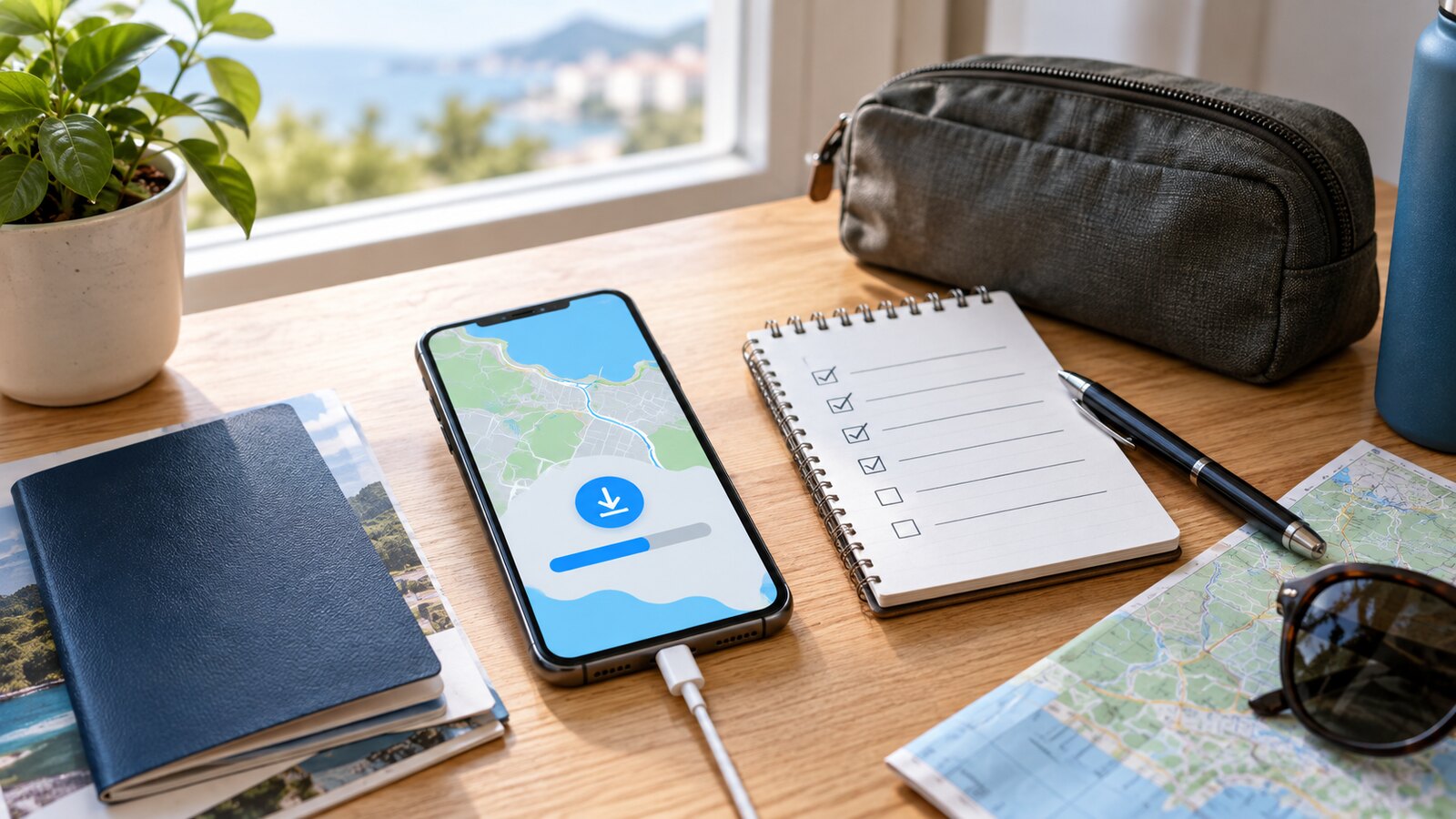
A map app feels reliable until the phone has no signal, the roaming plan is off, the train goes underground, or the road leaves town. That is usually the wrong moment to learn that directions, search results, saved places, and estimated travel times depend on a connection you no longer have.
Offline maps are a small preparation step with an outsized payoff. They do not replace local awareness, current transport notices, road signs, hotel directions, or emergency contacts. They simply give your phone a local copy of the area you are likely to move through, so navigation does not fail the first time data becomes slow, expensive, or unavailable.
The best time to set them up is before you leave home, while Wi-Fi, battery, storage, and patience are still available.
Quick Answer
Download offline maps before travel by choosing the city, region, route corridor, airport area, hotel neighborhood, and any day-trip zones you may need. Use your map app’s offline maps setting, adjust the selected area, download over Wi-Fi, confirm the file finished, rename it clearly, and test it in airplane mode. Update the map before departure, keep your phone charged, save important places, and remember that offline maps may not include live traffic, real-time transit changes, or every walking and cycling feature.
Start With the Places That Would Matter Offline
Do not download a huge map just because it feels safer. Start with the places where losing data would actually create stress.
For most trips, that means:
- Arrival airport, train station, bus terminal, or ferry port.
- Hotel, rental, campus, clinic, event venue, or meeting location.
- The neighborhood where you expect to walk on the first day.
- Day-trip towns, trailheads, beaches, parks, or rural roads.
- The route between arrival point and accommodation.
- A backup area around the nearest pharmacy, supermarket, bank, or clinic.
This is especially useful when you are landing late, crossing borders, using a new SIM or eSIM, driving in a low-signal area, travelling with children, attending a large event, or depending on a language you do not read confidently.
Offline maps are not only for international travel. They can also help during domestic road trips, mountain drives, subway rides, crowded festivals, power outages, storms, and everyday commutes through dead zones.
Use a Smaller Map When It Covers the Job
Map downloads take storage. A city center may be small enough to download quickly. A whole country, region, or long driving route may take much more space and still miss the specific area you need if the selection is wrong.
Most map apps let you adjust the download rectangle before saving. Zoom out enough to include the airport, accommodation, and likely route, but avoid swallowing an entire region when one corridor will do. Smaller maps are faster to download, easier to update, and less likely to force you into a storage cleanup at the gate.
If your trip has several separate stops, use separate downloads with clear names such as arrival city, north coast drive, or conference area. Clear names matter because a list of unnamed rectangles is hard to manage later.
If you recently cleaned up device storage, pair this with GDU’s guide to cleaning up cloud storage. Large videos, old downloads, duplicate photos, and unused apps can crowd out the maps you actually need.
Download on Wi-Fi and Confirm It Finished
Offline maps are only useful if the download completes.
Start while the phone is connected to reliable Wi-Fi and has enough battery. Keep the map app open long enough to confirm progress. If the app shows the size before downloading, check it against your available storage. If the download pauses, fails, or stays queued, fix that before assuming you are covered.
After the file finishes, open the offline maps list and confirm the area is present. If your app allows automatic updates, leave them on unless you have a specific reason not to. Map data can change, and some apps require downloaded maps to be updated before they expire.
Before departure, do one final refresh on Wi-Fi. That is a better moment to discover that the hotel neighborhood moved outside your selected rectangle or that your phone needs more free space.
Test the Map Before You Need It
A simple test catches most mistakes.
Turn on airplane mode, open the map app, and search for your accommodation, arrival point, and one nearby landmark inside the downloaded area. Then request a route that stays within the map. If the app can show the area, find the saved places, and produce a route, you have useful offline coverage.
If the app cannot find the place, check whether the map area is too small, the place was saved only as an online search result, or the app needs a different offline setting. Some search features are reduced offline, so it helps to save key places ahead of time rather than relying on fresh searches later.
Testing also shows you which navigation modes work offline. Google Maps, for example, supports offline guidance when the route is within the downloaded area, but some live features are unavailable without a connection. Apple Maps offline support can include turn-by-turn directions and place information in downloaded areas, but availability can vary by country or region. The practical habit is the same: test your own phone, app, destination, and route before the trip.
Save Important Places Separately
Do not rely on memory plus a map.
Save or pin the locations you may need under pressure:
- Accommodation address.
- Arrival terminal or station.
- Meeting venue.
- Parking location.
- Rental car office.
- Embassy, consulate, or local emergency contact if relevant.
- Pharmacy, clinic, or hospital near where you are staying.
- A familiar public landmark near your accommodation.
Keep the full address in your booking confirmation, calendar, notes app, or printed travel folder as well. A map pin is convenient, but an address is still useful when asking a hotel desk, taxi driver, bus operator, station attendant, police officer, or emergency service for help.
If you are travelling internationally, review destination requirements and emergency contacts before you go. GDU’s guide to checking passport validity before travel covers one document check that belongs in the same preparation window.
Know What Offline Maps Cannot Do
Offline maps reduce dependence on mobile data. They do not make the phone all-knowing.
Without a connection, you may lose live traffic, road closures, public-transport disruption, ride-hailing updates, business-hour changes, temporary event closures, ferry changes, weather-related hazards, and newly opened or closed roads. Walking, cycling, and transit functions may be limited depending on the app, region, and platform.
That means offline maps are best treated as a backup layer, not a promise. If a route looks unsafe, closed, flooded, restricted, or inconsistent with local signs, follow local instructions and seek updated information. If you are driving, do not let the phone override road signs, border rules, toll notices, parking rules, or safety conditions.
For international mobile access, an offline map pairs well with a working data plan. GDU’s travel eSIM setup guide explains how to check compatibility and activation before relying on mobile data abroad.
Keep Power and Access in the Plan
An offline map cannot help if the phone is dead, locked away, overheated, or out of storage.
Charge your phone before travel days. Carry the right cable. If the trip is long, add a charged power bank and keep it in a bag you can reach. GDU’s guide to choosing a power bank covers capacity, ports, airline limits, and battery safety.
Also think about access. If your phone uses face unlock, sunglasses, masks, helmets, rain, or low light can make unlocking slower. Know your passcode. If you are travelling with someone else, consider downloading the same offline area on a second phone. That backup is useful if one phone is lost, stolen, damaged, or low on battery.
For checked bags, do not place your only charger, power bank, or travel phone in luggage that could be delayed. GDU’s guide to preparing for a checked-luggage delay explains why first-day essentials belong in carry-on access.
Make It Part of the Final Travel Check
Offline maps work best as a repeatable habit, not a last-minute panic.
Two or three days before departure, download or update the maps. The night before, test one route in airplane mode. On the travel day, charge the phone and power bank. When you arrive, keep the map available until you understand the neighborhood well enough to move around calmly.
After the trip, delete maps you no longer need so storage is ready for the next one. Keep only areas you use often or expect to revisit soon.
Common Mistakes
The first mistake is downloading the wrong area. A map of the city center may not include the airport, beach road, highway rest stop, national park, or hotel outside town.
The second is downloading once and never updating. Offline maps can expire or become stale. Refresh them before departure.
The third is assuming offline means every feature works. Live traffic, current transit data, alternate routes, and place updates usually depend on connectivity.
The fourth is forgetting storage and battery. A completed map on a charged phone is useful. A half-downloaded map on a nearly dead phone is just a good intention.
The fifth is keeping all travel knowledge inside one app. Save addresses, booking details, emergency contacts, and meeting points in more than one place.
Bottom Line
Downloading offline maps is a quiet travel skill. It takes a few minutes, costs little or nothing, and can prevent a stressful arrival from becoming a confusing one.
Choose the areas that matter, keep them small enough to manage, download over Wi-Fi, test in airplane mode, save key places, and keep your phone powered. The goal is not to remove every travel surprise. It is to make sure a weak signal does not become the reason you lose your way.