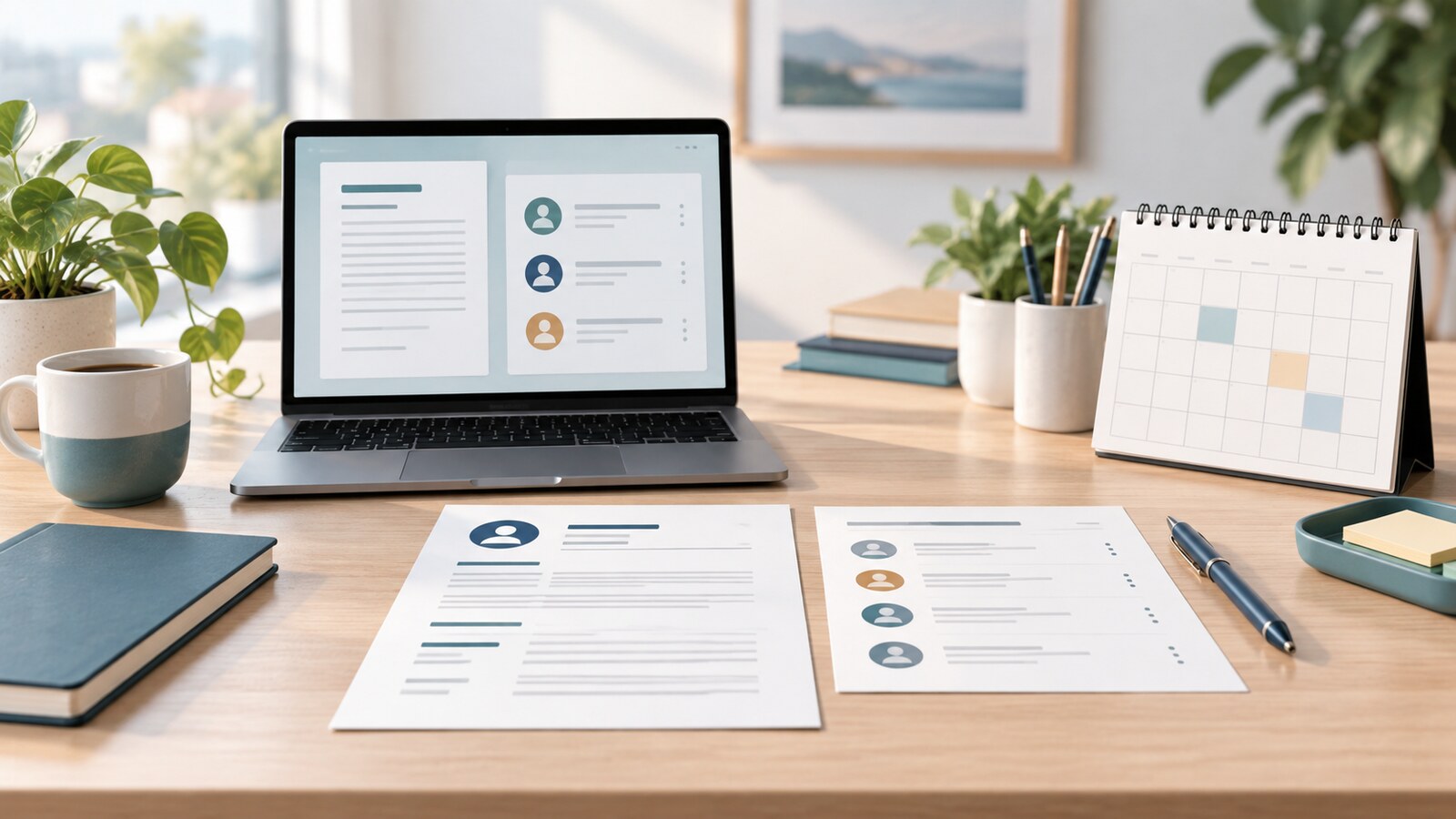
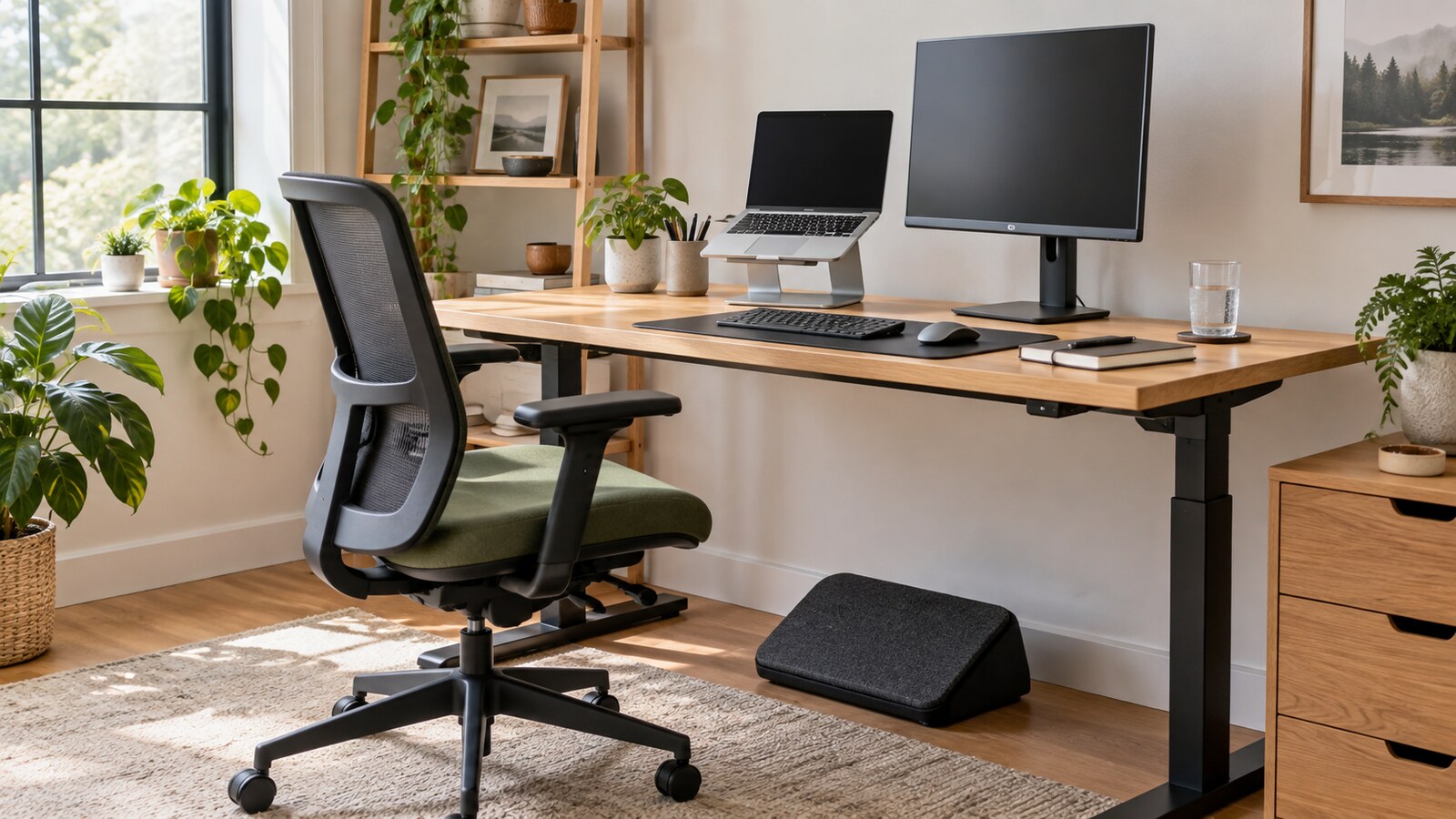
A desk can look organized and still work against you. The screen may be too low, the chair too high, the mouse too far away, the laptop keyboard too cramped, or the lighting bright enough to make you lean forward without noticing.
Desk ergonomics is not about buying a perfect chair or turning your workspace into a catalog photo. It is the practical process of matching the desk, chair, screen, keyboard, mouse, lighting, and work rhythm to the body using them.
That matters at home, in an office, in a shared workspace, and anywhere a laptop becomes a daily workstation. Small adjustments can make computer work feel less tense and easier to repeat.
Quick Answer
Set up desk ergonomics by adjusting the chair first, then the desk, screen, keyboard, mouse, lighting, and break routine. Sit with feet supported, thighs roughly level, shoulders relaxed, elbows close to the body, wrists neutral, and the screen directly in front of you at a comfortable viewing height and distance. If you work from a laptop for long sessions, raise the screen and use an external keyboard and mouse. Keep frequently used items close, reduce glare, clear space under the desk, and build short movement breaks into the day.
Start With the Chair, Not the Screen
The chair sets the rest of the workstation.
Adjust the seat height so your feet are flat on the floor. If your feet do not reach comfortably, use a footrest, a low stool, or a stable stack of books. Your thighs should feel supported rather than dangling or pressed hard against the seat edge.
Your lower back should have support. That may come from the chair’s built-in shape, an adjustable lumbar support, or a small cushion. The point is not to force a stiff military posture. It is to avoid collapsing into the chair for hours.
Armrests are useful only if they help your shoulders stay relaxed. If they push your shoulders upward, stop you from getting close enough to the desk, or make you reach awkwardly for the keyboard, lower them, move them, or avoid leaning on them.
Before buying anything, try the free adjustments you already have. Many discomfort problems come from a chair that was never adjusted after delivery.
Make the Desk Fit the Chair
Once the chair is set, check the desk.
There should be enough room under the desk for your legs and feet. Boxes, cables, bags, heaters, and storage bins can quietly force the body into a twisted position. Clear that space before judging whether the desk itself is wrong.
If the desk is too high, your shoulders may lift while typing. Raise the chair and add foot support if needed. If the desk is too low and cannot be adjusted, sturdy risers may help, but only if they are stable and safe.
Watch for hard desk edges. A sharp edge pressing into the wrist or forearm can create contact stress during long sessions. Moving the keyboard back slightly, padding the edge, or changing where your forearms rest can help.
The goal is simple: sit close enough to work without reaching, but with enough space to move your legs.
Put the Screen Where Your Neck Can Stay Neutral
A screen that is too low often turns into a forward head posture. A screen that is too far away can make you lean in. A screen off to one side can make one side of the neck work harder all day.
Place the main screen directly in front of you, behind the keyboard. Mayo Clinic’s office ergonomics guidance describes a common range of about arm’s length away, with the top of the screen at or slightly below eye level for many users. The exact height may change if you wear bifocals, use a very large monitor, or split work across two screens.
Do not chase a single perfect measurement. Use the body check:
- Can you read ordinary text without leaning forward?
- Can your head stay balanced over your shoulders?
- Is the main work area centered in front of you?
- Are you looking slightly downward rather than craning upward?
- Is glare making you tilt or twist?
For two monitors, center the one you use most. If you use both equally, bring them together and angle them slightly so your neck does not keep rotating to one side.
Stop Treating a Laptop Like a Full Workstation
A laptop is portable because the screen and keyboard are attached. That same design is the problem during long desk sessions.
If the laptop is low enough for comfortable typing, the screen is usually too low. If the laptop is high enough for comfortable viewing, the keyboard and touchpad are usually too high. That does not make laptops bad; it means they need help when they become a daily workstation.
For regular desk work, raise the laptop on a stand, box, or stack of books, then add an external keyboard and mouse. This simple setup lets the screen sit higher while your hands stay lower and closer to the body.
If you work from different places, keep the portable version modest: a foldable stand, compact keyboard, small mouse, and a habit of resetting the screen height when you arrive. For video calls, GDU’s guide to setting up for a video interview covers camera height and lighting in more detail.
Keep the Keyboard and Mouse Close
The keyboard should sit in front of you, not off to one side. Your elbows should stay close to the body, shoulders relaxed, wrists fairly straight, and hands around elbow height or slightly below.
The mouse belongs beside the keyboard on the same level. If it sits too far forward, too far to the side, or on a different surface, every click becomes a small reach. That reach may not matter once. Repeated hundreds of times, it can matter.
If your keyboard has a number pad you rarely use, the mouse may be pushed far to the right. A smaller keyboard, centered letter keys, or a separate number pad can bring the mouse closer. Left-handed users should not be forced into a right-handed setup if switching sides feels better.
Use a light touch. Keyboard pounding and gripping the mouse tightly can add unnecessary effort. Pointer sensitivity may also help if you are dragging the mouse across a large distance.
Fix Glare Before You Blame Your Eyes
Lighting changes posture. If a screen reflects a bright window, lamp, or ceiling light, you may squint, raise your chin, lean forward, or twist the monitor without realizing why.
Place the screen so windows are to the side where possible, not directly behind the screen or directly behind you. Adjust blinds, move a lamp, reduce screen brightness at night, or add task lighting for paper notes.
The Health and Safety Executive’s display-screen guidance treats workstation setup, work routine, eyesight, and training as part of the same risk picture. That is useful because eye strain and body strain often show up together. A setup that makes you lean, squint, or hold tension is asking for a second look.
If text is too small, increase the font size or zoom level. Do not solve small text by folding your body toward the screen.
Keep Common Items Within Easy Reach
Desk ergonomics includes the objects around the computer.
Put the items you use often close enough that you do not need to stretch repeatedly: phone, notebook, pen, headset, water, reference papers, charger, and any device you check throughout the day.
Move rarely used items farther away. If you need something only occasionally, standing up to get it can be better than keeping everything crowded within reach.
Avoid cradling a phone between your ear and shoulder while typing. Use speaker mode, earbuds, or a headset if calls are frequent and appropriate for your environment.
This is also where digital habits matter. If constant alerts keep pulling you into awkward reaches or side glances, GDU’s guide to reducing notification overload can help the workstation feel calmer as well as tidier.
Build Movement Into the Setup
Even a well-arranged desk does not make stillness healthy.
Mayo Clinic notes that sitting in one position for hours is not good for the body and recommends getting up, walking around, standing when possible, and stretching hands, fingers, and arms from time to time. OSHA’s workstation checklist also points to varied computer tasks, micro-breaks, and recovery pauses as part of workstation comfort.
Movement does not need to be dramatic. Try:
- Standing for a call.
- Walking while thinking through a problem.
- Looking away from the screen between tasks.
- Stretching fingers and forearms after heavy typing.
- Refilling water away from the desk.
- Taking a short walk before or after a deep work block.
If you want a simple movement habit outside work, GDU’s guide to starting a walking routine can help keep the goal realistic.
Do a Five-Minute Desk Reset
Use this quick check when a workspace feels wrong:
- Put both feet on the floor or a footrest.
- Adjust the chair so thighs feel supported and shoulders can relax.
- Clear space under the desk.
- Center the keyboard and main screen.
- Bring the mouse beside the keyboard.
- Raise the screen if you are looking down too sharply.
- Increase text size if you are leaning forward to read.
- Move bright glare sources or change screen angle.
- Place common items within easy reach.
- Stand up, reset, and return to the chair to test the setup again.
Take a photo of a setup that works. It can help you rebuild the same arrangement after cleaning, moving, hot-desking, or traveling.
When Gear Is Worth Buying
Ergonomic products can help, but the label alone does not guarantee comfort.
The Canadian Centre for Occupational Health and Safety describes ergonomics as a process of matching furniture, tools, workstation, equipment, and environment to the worker and task. That is a useful warning against buying one “ergonomic” item and expecting it to solve everything.
Spend money where it solves a real mismatch:
- A footrest if the chair height is right for the desk but your feet are unsupported.
- A laptop stand plus external keyboard and mouse for regular laptop work.
- A monitor arm or riser if the screen cannot reach a comfortable height.
- A chair with better support if your current chair cannot adjust enough.
- A headset if phone calls make you bend your neck.
- A task light if poor lighting keeps changing your posture.
Avoid buying from discomfort alone. First identify what is wrong: height, distance, support, glare, reach, space, or routine.
Listen to Persistent Pain
Desk ergonomics is general comfort guidance, not a diagnosis.
If pain, numbness, tingling, weakness, headaches, eye symptoms, or discomfort persists, worsens, spreads, wakes you at night, or affects daily activities, seek appropriate medical or occupational-health advice. A better setup may help, but persistent symptoms deserve more than guesswork.
Workers should also use the support available in their workplace, school, or local regulations. Some settings offer workstation assessments, equipment adjustments, eye-test policies, or occupational-health referrals.
The Best Setup Is the One You Can Repeat
A good desk setup should feel ordinary, not precious.
Adjust the chair. Support your feet. Center the screen and keyboard. Keep the mouse close. Raise the laptop if it has become your main computer. Reduce glare. Clear legroom. Move before stiffness becomes the reminder.
The best ergonomic desk is not the most expensive one. It is the one that lets you work with less reaching, less squinting, less twisting, and more chances to change position before your body has to complain.