
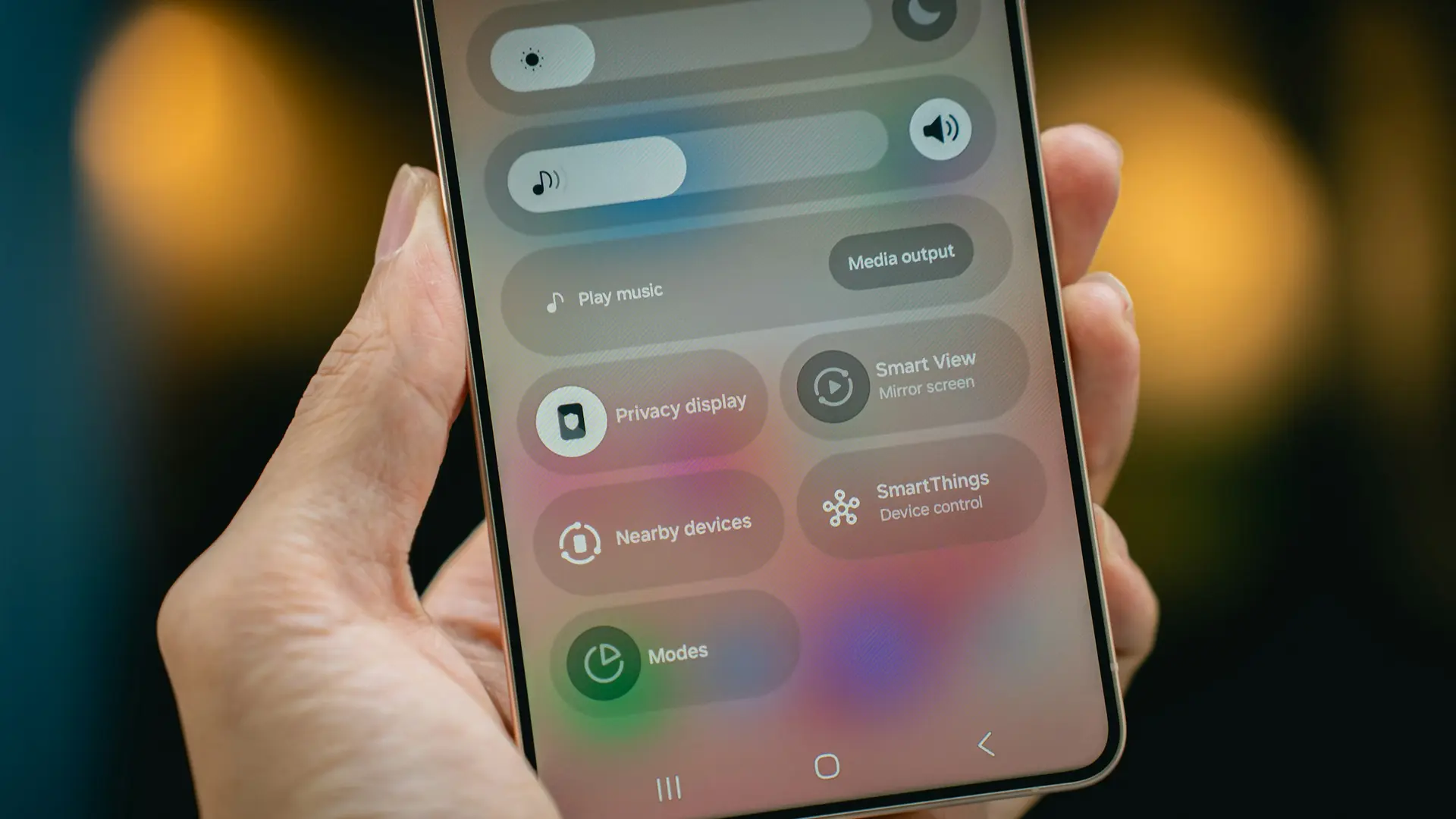
Most phone privacy problems do not start with a dramatic hack. They start with ordinary taps: allow camera, contacts, location, notifications, or photos. After months or years, a phone can end up with dozens of apps holding access they no longer need.
Cleaning up app permissions is one of the fastest ways to reduce unnecessary data sharing without deleting everything or changing phones. The goal is not to make every app useless. The goal is to match each permission to a real task.
This guide shows how to review permissions on iPhone and Android, which categories deserve attention first, and how to make changes without breaking maps, banking, messaging, photos, or work apps.
The Problem
Apps often ask for permissions at the moment when a user wants to finish something quickly. A delivery app may ask for location. A social app may ask for photos. A messaging app may ask for contacts. A note app may ask for the microphone.
Some requests are reasonable. Others are excessive, outdated, or tied to a feature you used once. The Federal Trade Commission advises people to check smartphone privacy settings and consider turning off permissions that apps do not need to function.
The risk is cumulative. One permission may seem harmless, but a large collection of apps with access to location, contacts, photos, microphone, camera, Bluetooth, nearby devices, and background activity can reveal a detailed picture of daily life.
Step 1: Start With the Permission Manager
Begin with the phone’s built-in privacy controls instead of opening every app one by one.
On iPhone, open Settings, then Privacy & Security. Apple says this area lets users control which apps can access information stored on the device, including categories such as location, contacts, calendars, photos, Bluetooth, microphone, camera, and motion data.
On Android, open Settings and look for Security & Privacy, Privacy, or Permission manager. Google’s Android help explains that users can review permissions by type, such as camera, microphone, location, contacts, phone, SMS, files, and photos. Search Settings for “permission” if your phone uses different labels.
This view is useful because it shows the whole category: “Which apps can use my microphone?”
Step 2: Review Location First
Location deserves the first review because it can reveal where you live, work, worship, shop, study, travel, and spend nights.
For maps, ride-hailing, weather, delivery, emergency, fitness, and navigation apps, location may be necessary. Even then, the best setting is often “while using the app” rather than continuous background access.
On iPhone and Android, location choices usually include options such as never, ask every time, while using, and always. Many phones also let you share approximate location instead of exact coordinates.
Deny location for games, filters, shopping apps, casual utilities, and apps you rarely use unless there is a clear reason. If an app stops working, you can grant access again later.
Step 3: Tighten Camera and Microphone Access
Camera and microphone permissions should be easy to explain. A video-call app needs both. A scanning app needs the camera. A voice recorder needs the microphone. A flashlight, coupon app, wallpaper app, calculator, or simple game usually does not.
Review both categories separately. Remove access from apps that do not have a current, obvious reason to use the sensor.
Newer iPhone and Android versions also show indicators when the camera or microphone is active. Treat those indicators as a prompt to ask whether the app’s behavior matches what you are doing.
Be careful with accessibility, translation, dictation, meeting, or security-camera apps. They may depend on microphone or camera access in less obvious ways.
Step 4: Limit Contacts, Photos, and Files
Contacts access can expose other people, not just you. Messaging, calling, email, and trusted social apps may need contacts. A retailer, game, quiz app, or one-time event app usually does not.
Photos require the same caution. On iPhone, Apple supports limited photo access, which lets you choose selected photos instead of giving an app the entire library. Use that option when an app only needs one receipt, profile picture, document scan, or upload.
On Android, recent versions support more specific photo and video access on many devices. Use selected access for apps that only need occasional uploads.
Step 5: Check Tracking, Notifications, and Background Activity
Permissions are not only about sensors and files. Apps can also track, interrupt, and run in the background.
On iPhone, App Tracking Transparency lets users decide whether apps can ask to track activity across other companies’ apps and websites for advertising or data-broker purposes. Review Settings, Privacy & Security, Tracking, and turn off access for apps that do not need it.
Apple’s App Privacy Report can also show how apps use granted permissions and contact network domains, which is useful after a cleanup.
On Android, review notifications, unused apps, background battery use, and special app access. Some Android devices automatically remove permissions from unused apps, but it is still worth checking manually.
Notifications can expose message previews, financial alerts, one-time codes, delivery details, and private reminders on a lock screen. Disable noisy apps and hide sensitive notification content where needed.
Step 6: Use a Three-Part Test Before Denying Access
Before changing a permission, ask three questions.
First, what feature needs this permission? If you cannot name the feature, deny or limit it. Second, does the app need access all the time or only while you use it? Third, is there a less invasive setting, such as approximate location, selected photos, “ask every time,” or “while using”?
This test keeps the cleanup practical. You do not have to understand every technical permission to make better choices.
Step 7: Test Important Apps After Changes
After a permissions cleanup, test the apps you rely on most. Open maps, banking, and messaging apps and confirm location, camera, calls, photos, and contacts still behave as expected.
If something breaks, restore only the permission that is necessary. Do not turn everything back on because one feature failed.
For work phones or school-managed phones, follow the organization’s policy. NIST’s mobile-device security guidance treats mobile permissions and app control as part of a wider device-management strategy, especially when phones access work data.
Best Practices
Review permissions every three months and after installing several new apps. A calendar reminder is enough.
Delete apps you no longer use. Removing an app is cleaner than micromanaging permissions for software you forgot about.
Use official app stores, keep the operating system updated, and avoid installing apps for tasks your phone already handles.
Give temporary access when possible. “Ask every time” is useful for apps that only occasionally need location or photos.
Pair this with broader phone hygiene. GDU’s guides to emergency contacts and phone photo backups cover two settings that should remain reliable even after a privacy cleanup.
Common Mistakes
The first mistake is denying permissions blindly. That can break navigation, delivery tracking, banking verification, accessibility tools, and family safety features.
The second is granting “always allow” because it is convenient. Most apps only need access while open.
The third is ignoring contacts and photos. These categories can reveal more than a single app screen suggests.
The fourth is forgetting old apps. A game, event app, temporary scanner, or old shopping app may still hold permissions long after you stopped using it.
The fifth is treating privacy settings as a one-time project. App updates, operating-system upgrades, and new features can change what an app asks to access.
FAQ
Will removing permissions delete my data?
Usually no. Removing a permission normally stops the app from accessing that category in the future. It does not automatically delete data the app already stored or uploaded.
Which permissions are safest to remove first?
Start with location, camera, microphone, contacts, photos, Bluetooth, and nearby devices for apps you rarely use. These categories are easy to understand and often over-granted.
Should I deny all tracking requests?
Many users choose to deny tracking because most apps do not need cross-app tracking to provide their core service. Review each app, but be skeptical of tracking that mainly supports advertising or profiling.
Why does a legitimate app ask for so many permissions?
Large apps often include messaging, payments, maps, uploads, camera features, voice features, contacts discovery, and personalization. That does not mean every permission is necessary for how you use the app.
How often should I clean up permissions?
Every three months is a good rhythm. Also review permissions after buying a new phone, helping a child or older relative set up a device, installing a major operating-system update, or leaving a job or school device program.
Summary
Cleaning up app permissions is a low-cost privacy habit. Start with the permission manager, review location, camera, microphone, contacts, photos, tracking, notifications, and background access, then test the apps that matter. The best setup is not the strictest possible phone. It is a phone where every permission has a current, understandable reason.