Screens and keyboards get dirty in ordinary ways: fingerprints, dust, crumbs, skin oils, makeup, coffee mist, bag lint, and the residue that appears after a device has lived on a desk for months. Cleaning them should be simple, but electronics are easy to damage with the wrong kind of enthusiasm.
The safest routine is not aggressive. It is slow, lightly damp, and specific to the surface you are cleaning.
Quick Answer
To clean screens and keyboards safely, power the device down, unplug it, remove the case if needed, and use a clean microfiber or lint-free cloth. Start dry. If a mark remains, lightly dampen the cloth with water or a manufacturer-approved cleaner, then wipe gently. Do not spray liquid directly on a screen, keyboard, port, speaker, or charging opening. Avoid bleach, abrasive pads, window cleaner, compressed-air abuse, and soaked cloths. Use disinfectant only when the device maker allows it, and apply it to the cloth rather than flooding the device.
Start With the Lowest-Risk Cleaning
Most device cleaning should begin with less, not more.
Turn the device off. Unplug power cables, chargers, external drives, headphones, and accessories. If the device has a removable keyboard cover, case, stand, or sleeve, take it off so crumbs and dust do not stay trapped around edges.
Then wipe with a clean microfiber cloth. A dry cloth removes a surprising amount of dust, fingerprints, and surface oil. It is also less likely to push moisture into speaker holes, keys, charging ports, hinges, or seams.
For screens, use gentle overlapping strokes rather than hard circular scrubbing. Modern phone, tablet, and laptop screens may have coatings that reduce glare or fingerprints. A rough cloth, paper towel, abrasive sponge, or strong chemical can leave scratches, haze, or coating damage.
If a dry cloth is enough, stop there.
Use Moisture Carefully
When a dry wipe does not work, use a lightly damp cloth. The key word is lightly.
Device makers commonly recommend a soft, lint-free cloth dampened with water or a mild soap-and-water mix for certain exterior surfaces. Microsoft, for example, advises cleaning Surface touchscreens and keyboards with a lint-free cloth and mild soap-and-water approach in regular care guidance. Apple cleaning guidance also emphasizes soft, lint-free cloths and cautions against getting moisture into openings.
That does not mean every surface wants the same treatment. A glass phone screen, a laptop display, a fabric keyboard cover, a plastic mouse, and a metal laptop lid may have different limits.
Use this order:
- Clean dry first.
- Dampen the cloth, not the device.
- Wring or shake off excess moisture.
- Wipe gently.
- Use a second dry cloth to remove leftover moisture.
- Let the device dry fully before reconnecting power.
Never spray cleaner straight onto a laptop screen or phone. A fine mist can travel farther than it looks, and gravity can pull liquid into the bezel, keyboard, speaker grille, charging port, or hinge.
Know When Disinfecting Is Different From Cleaning
Cleaning removes visible dirt, oils, and some germs from a surface. Disinfecting uses a suitable chemical for a suitable contact time to reduce germs more directly. Those are related, but they are not the same job.
The CDC’s household and facility cleaning guidance says electronics such as touchscreens, tablets, keyboards, and remote controls should be cleaned according to manufacturer instructions. That is the right hierarchy: the device maker’s care instructions come first, because screens, coatings, fabrics, ports, and adhesives vary.
Some manufacturers allow certain alcohol-based wipes or disinfectants on hard, nonporous exterior surfaces. Samsung’s Galaxy phone cleaning guidance, for example, allows specific alcohol-based or hypochlorous-acid options for listed phones, while still warning users not to put liquid into openings or use the guidance for unrelated products. Apple allows certain disinfecting wipes on hard, nonporous surfaces for many products but warns against bleach, hydrogen peroxide, abrasive materials, and moisture in openings.
The practical lesson is simple: disinfect only when you have a reason, use a compatible product, and keep the wipe damp rather than wet. More chemical is not more careful.
Clean Keyboards Without Forcing Dirt Deeper
Keyboards collect crumbs and dust because they are full of small gaps. The mistake is trying to solve that with liquid.
For a laptop keyboard or external keyboard:
- Power down and unplug.
- Turn the keyboard gently at an angle and tap lightly to loosen crumbs.
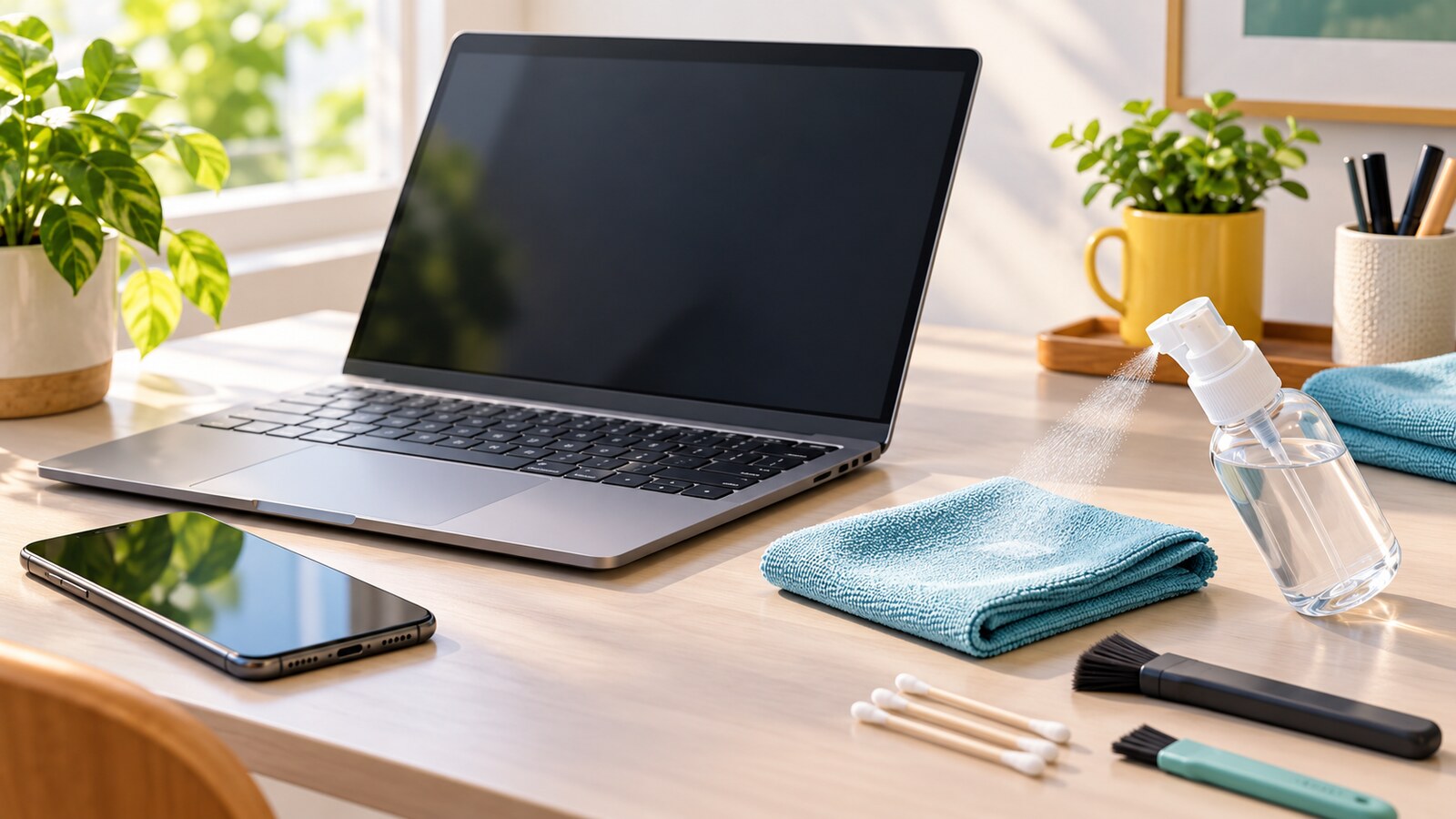
- Use a soft brush to move debris away from key edges.
- Wipe key tops with a lightly damp lint-free cloth.
- Use a cotton swab only where it can reach without snagging or shedding fibers.
Do not pour cleaner between keys. Do not soak a cloth and press liquid into the keyboard. Do not pry keys off unless the manufacturer provides that as a supported maintenance step for your exact keyboard. Many modern laptop keyboards are shallow, fragile, backlit, or bonded in ways that punish curious force.
Compressed air needs care too. Some manufacturers give specific angles and short bursts for certain keyboards, while others caution against using air on phones or delicate openings. If you use air, keep it gentle, keep the can upright if required by the product, and avoid blasting debris deeper into the device.
Treat Ports, Speakers, and Hinges as No-Liquid Areas
Ports and speaker grilles are where cleaning goes wrong quickly.
A charging port can look dusty, but pushing a metal tool into it can bend contacts, compact lint, or cause damage. A speaker grille may look dirty, but wet cleaning can push residue behind the mesh. A laptop hinge can hold crumbs, but excess moisture near a hinge can move toward internal parts.
For these areas, use restraint:
- Remove visible loose dust with a soft, dry brush.
- Keep liquids away from ports, speakers, microphones, vents, and hinges.
- Avoid toothpicks, pins, knives, metal tweezers, and sticky putty.
- If charging or audio problems continue after gentle cleaning, use repair support rather than digging deeper.
The goal is to improve ordinary cleanliness, not perform a repair.
Match the Routine to the Device
Phones usually need frequent light cleaning because they travel through hands, bags, desks, kitchens, cars, and public spaces. A daily or every-few-days microfiber wipe may be enough for many people. Disinfecting may make sense after illness exposure, shared use, travel, gym use, or food handling, if your device maker allows the product.
Laptop screens need less product than people think. Fingerprints near the edge and dust across the display often come off with a dry or barely damp cloth. Keep pressure light, especially on thin displays.
External keyboards and mice benefit from routine crumb control. A quick weekly wipe is easier than rescuing a sticky keyboard later.
Shared family tablets, school devices, point-of-sale screens, and office equipment need a clearer routine because many hands touch them. In that case, keep compatible wipes nearby, label the safe cleaning method, and avoid letting everyone improvise with whatever cleaner is under the sink.
Avoid These Common Cleaning Mistakes
The products that clean windows, kitchens, bathrooms, and floors are often too harsh for electronics.
Avoid:
- Window cleaner on screens unless the device maker explicitly approves it.
- Bleach, hydrogen peroxide, ammonia, and abrasive powders.
- Paper towels, rough cloths, scouring pads, and tissues that shed fibers.
- Spraying liquid directly onto the device.
- Letting moisture pool around keys, bezels, ports, or buttons.
- Cleaning while the device is hot, plugged in, or actively charging.
- Using a damaged charger or cable immediately after wet cleaning.
- Cleaning fabric, leather, or coated accessories as if they were glass.
If you are also reorganizing a work area, GDU’s guide to setting up desk ergonomics can help you place the cleaned keyboard, mouse, laptop, and screen in a more comfortable arrangement.
Make a Simple Device-Cleaning Kit
A small kit prevents bad substitutions.
Keep:
- Two clean microfiber cloths.
- A soft brush.
- Cotton swabs for exterior creases.
- A small bottle of distilled water or approved screen cleaner.
- Compatible disinfecting wipes if your device maker allows them.
- A small bag or box so the cloths stay clean.
Wash microfiber cloths separately from lint-heavy towels when possible. Do not use fabric softener if it leaves residue. A dirty cloth can drag grit across a screen and create the problem it was supposed to solve.
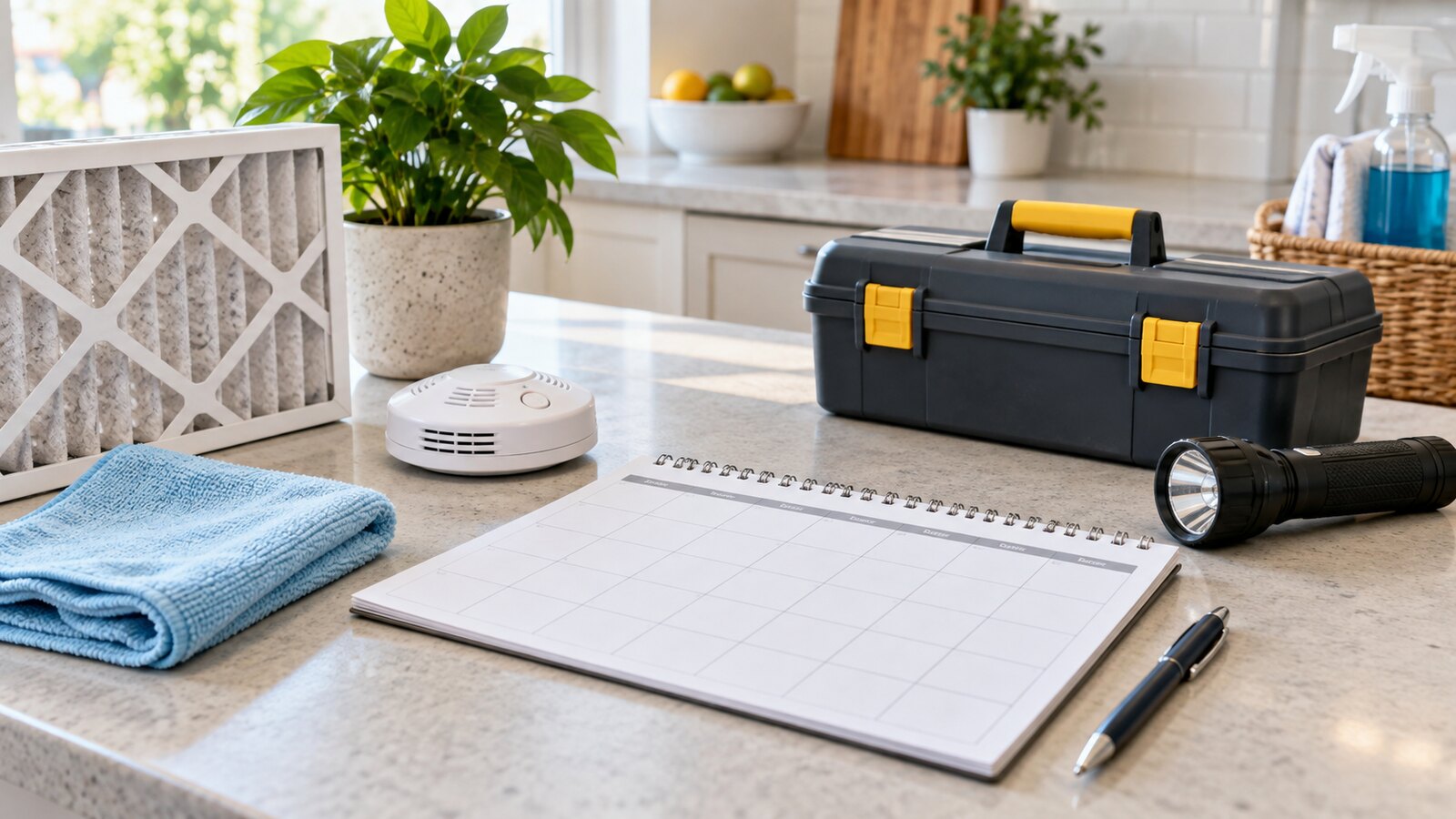
For household planning, add device cleaning to a recurring routine rather than waiting for a keyboard to look embarrassing. GDU’s home maintenance calendar approach works well for small technology tasks too: schedule the repeatable jobs, keep the supplies together, and do a quick check before problems build up.
Clean Before Passing a Device On
Cleaning is also part of preparing a device for repair, resale, donation, or handoff. Wiping the outside is polite and practical, but it is not the same as protecting data.
Before a phone or laptop leaves your control, clean it physically, then deal with accounts, backups, factory reset, device locks, cards, SIMs, and accessories. GDU’s guide to wiping an old phone or laptop before selling covers the privacy side of that process.
If you are keeping the device, this is also a useful moment to review the apps and permissions that still belong on it. A clean screen feels better, but a clean setup matters too.
The Bottom Line
Good device cleaning is gentle, boring, and repeatable. Power down. Start with a dry microfiber cloth. Add only a little moisture when needed. Keep liquid away from openings. Disinfect only with a product your device maker allows. Use soft tools around keyboards and ports, and stop before cleaning turns into repair work.
The best sign you are doing it right is that nothing dramatic happens: the screen is clearer, the keyboard feels better, and the device keeps working exactly as it did before.