To make TV subtitles easier to read, start with the controls in the app playing your programme, then check the streaming device’s accessibility settings if needed. Increase the text size or try a clearer background, and assess the result from your normal seat. The available controls depend on the app, device, language and title.
A television can have several different subtitle menus. Finding the one that actually affects your programme is usually more useful than changing every setting you can find.
Identify What Is Playing the Picture
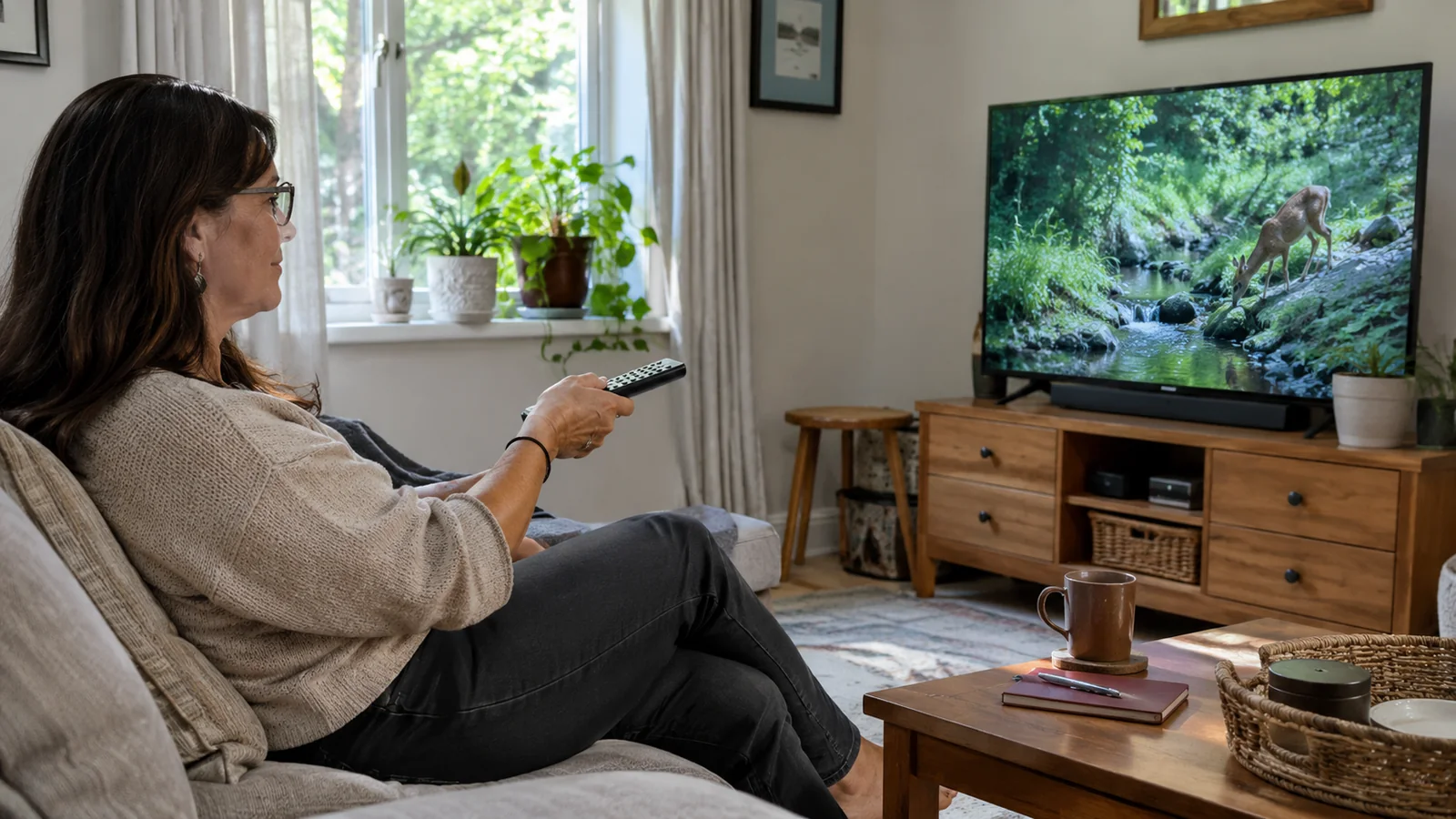
Before opening menus, name the route your programme takes to the screen. Are you watching an app installed on the television, an external streaming box, a games console or a broadcast channel? The TV’s own caption setting may be separate from the controls in an app or connected box.
For example, if you select an HDMI input and then open a streaming service, begin with that service and the connected device. If you launch the service directly from the television’s home screen, begin with its player menu. Keep the remote that controls playback nearby; the remote used only for volume may not open the options you need.
Make a brief note of the app, device model and current setting. This gives you a useful starting point if an adjustment has no effect, and makes it easier to explain the problem to support later.
Choose the Right Track Before Styling It
First confirm that the selected subtitle language is the one you want. A style adjustment will not correct a wrong language or an unsuitable track.
Captions or tracks marked SDH can include sound information as well as dialogue. On Netflix, availability varies by title and sometimes by season or episode. Standard dialogue subtitles may therefore provide less context than an available SDH track. Pick the option that fits what you need to follow, rather than assuming two similarly named tracks contain identical information.
In Netflix, start a title and bring up the playback controls using the remote. Open Audio & Subtitles, or the language choices shown by the player, and select from the available tracks. The exact control position differs between devices. Check a short passage before moving on to appearance adjustments.
Change Size and Contrast One Step at a Time
Use a familiar scene with conversation so you can judge the result without concentrating on an unfamiliar plot. If possible, include a passage with both pale and dark backgrounds.
- Start with one size increase. Return to playback and read from your usual seat rather than standing close to the screen.
- Try a clearer contrast option. Where offered, compare a shadow, outline or background behind the letters. Choose the version that stays readable as the picture changes.
- Check the whole frame. Make sure the result is comfortable without hiding details you want to see. The largest option is not automatically the most useful.
- Change one other feature only if necessary. Keep a note of the previous choice so you can reverse an adjustment that makes reading harder.
- Test with the people sharing the screen. A setting that works for one seat or viewer may need a compromise in a shared room.
There is no need to match someone else’s preferred font or colour. Your practical test is whether you can follow the lines comfortably while still watching the programme. Also check for reflections on the screen; adjusting a curtain or lamp may be worth trying alongside the text settings.
Find the Controls in Netflix and Google TV
These are starting points for supported setups, rather than a promise that every television has the same menu.
Netflix appearance options
On a supported TV or streaming device, play a title, pause, open the player controls and look for Settings. Netflix offers Size and Style there when supported. If that option is absent, the device may not support appearance changes for the language in use.
A browser provides additional choices: open Netflix Account, choose Profiles and the relevant profile, then Subtitle appearance. Save your choices. Netflix advises reloading its TV app through Settings, Get Help and Reload when needed for changes to take effect. Older devices and some language or regional combinations have limitations; TV controls also offer fewer options than the browser.
Google TV caption preferences
From the Google TV home screen, go to Settings, Accessibility and Captions. Turn on Display and select the available preferences. Google warns that these preferences may not apply to some apps, so return to your actual programme to check.
If an app ignores the device preference, inspect its own playback or accessibility controls. Avoid repeatedly changing a system setting that has already proved ineffective for that app.
When the New Style Does Not Appear
Troubleshoot the narrow problem before resetting anything. If the change appears in one service but not another, concentrate on the service that ignores it. If one title behaves differently, compare another episode or programme in the same app.
Check that you edited the profile you actually use on the television. Then confirm the selected language and look for any separate in-player style choice. Close and reopen playback, or use the service’s documented reload option. Keep account credentials available before considering any action that signs you out.
Record what you tried in plain language: “larger captions work in this app, but the other app keeps its original style.” Add the device model, app name and an example title when contacting support. That is more actionable than reporting that subtitles are broken everywhere.
Avoid a factory reset as an early experiment. It creates extra setup work without establishing which part of the viewing setup controls the text. The same principle helps when troubleshooting a slow phone: isolate the problem before making a disruptive change.
Keep a Useful Setting Easy to Restore
Once you find a comfortable combination, save a short note describing where you changed it and which options worked. A household can keep that note in the same shared space used for other small coordination tasks, such as a shared shopping list, without storing passwords there.
Finish by watching a few minutes normally. If you stop noticing the styling and can follow the programme, you have a useful result. Revisit it when the app, viewing seat or viewer’s needs change, rather than adjusting menus before every episode.