
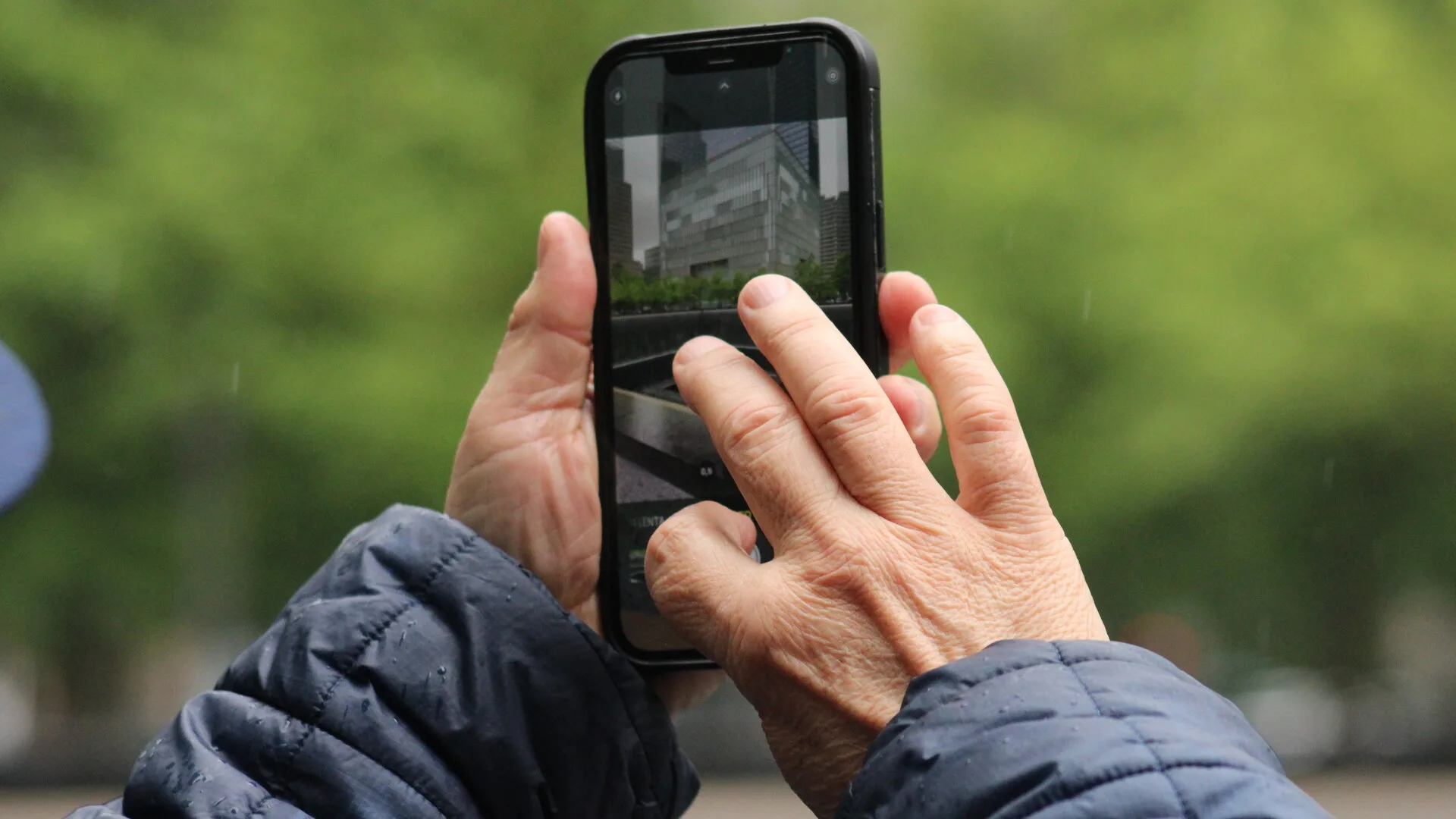
Phone storage usually fills up at the worst moment: during a trip, before a family event, or while recording a work video. The risky response is to delete photos quickly and hope the important ones are already backed up somewhere.
A safer plan is to treat phone photos like personal records. They need at least one cloud copy, one way to recover after a lost phone, and a clear rule for when it is safe to remove local files. The goal is not simply to make the “storage full” warning disappear. It is to free space without deleting the only copy of your memories, receipts, documents, school photos, travel records, or work media.
This guide covers a practical setup for Android and iPhone users, including Google Photos, iCloud Photos, Microsoft OneDrive, and a local backup option. It also pairs well with GDU’s guides to account recovery and home Wi-Fi security, because photo backups depend on both the account and the network you use.
Start With One Main Photo Library
Pick one primary place where your photos should live. For most people, that will be Google Photos, iCloud Photos, OneDrive, or another paid cloud photo service. Using several apps can be useful, but it can also create confusion if you do not know which service has the complete library.
If you use Android and Gmail heavily, Google Photos may be the simplest default. If your household uses iPhone, iPad, Mac, and Apple accounts, iCloud Photos is usually the smoothest option. If you already pay for Microsoft 365, OneDrive camera upload can be attractive because the storage may already be included in your subscription.
Before turning on backup, check three things:
- Which account is signed in on the phone
- How much cloud storage is available
- Whether videos are included in backup
Videos are usually the biggest storage problem, so a backup plan that skips them may look successful until the phone fills up again.
Turn On Automatic Backup
For Google Photos, open the app, tap your profile picture or initial, then review the backup settings. Google’s help pages explain that users can manage backup, select device folders on Android, and check storage usage inside Photos settings. Pay attention to folders created by messaging apps, editing apps, downloads, and screenshots. Some are worth backing up; others may be disposable clutter.
For iCloud Photos, Apple says iPhone and iPad users can turn on photo syncing from Settings, tap their name, choose iCloud, then Photos, and enable syncing for the device. Once iCloud Photos is on, edits and deletions sync across devices using the same Apple Account. That is convenient, but it also means deleting a photo on one synced device can remove it from the cloud library too.
For OneDrive, Microsoft documents camera backup on Android and Camera Upload on iOS. On Android, the app can also back up additional device folders. On iOS, Microsoft notes that Camera Upload sends the camera roll to OneDrive and does not sync both ways, so deleting uploaded media from the device should not remove the OneDrive copy. That difference matters if you are choosing a service mainly to free phone space.
After enabling backup, leave the phone on Wi-Fi and power for the first large upload. Thousands of photos and videos can take hours or days, depending on upload speed, battery settings, and cloud storage limits.
Confirm the Backup Before Deleting Anything
Do not trust a backup setting just because the toggle is on. Test it.
Take a new photo, wait for it to upload, then open the cloud service from a browser on another device. Confirm that the new photo appears there. Search for a few older photos from different months or years. Open a video and check that it plays. If your library includes screenshots, scanned documents, WhatsApp images, school files, or edited photos, verify whether those folders are included.
This small test prevents a common mistake: freeing space before the upload is complete. If you delete media while the backup queue is unfinished, you may remove files that never reached the cloud.
Free Device Storage the Right Way
Once the backup is confirmed, use the storage-freeing tool built into the same service whenever possible.
Google Photos has storage management and device cleanup features. Its help pages warn that when an account is out of storage, uploads and backups can stop. That means you should check cloud space before relying on ongoing backup. If your Google storage is full because of Gmail, Drive, or old videos, the phone may not continue backing up new photos until you clean up or upgrade.
Apple’s storage guidance explains that iCloud Photos can store full-resolution originals in iCloud while keeping smaller versions on the device when Optimize Storage is enabled. This is often safer than manually deleting photos because the phone manages local copies while keeping the full library available through iCloud.
OneDrive users should distinguish between deleting local device copies and deleting from the cloud library. Microsoft says iOS camera roll upload is one-way, while Android users should use OneDrive’s own cleanup guidance and confirm the files are visible in OneDrive before removing phone copies.
The rule is simple: do not delete from the cloud library unless you want the photo gone.
Keep a Second Backup for Important Photos
Cloud backup is convenient, but it is still one account. If that account is locked, full, misconfigured, or compromised, your photos can become hard to reach. Keep a second copy of irreplaceable files.
For most households, a monthly export to a computer or external drive is enough. Connect the phone by cable, use the computer’s photo import tool, or download batches from the cloud service. If the photos are extremely important, keep another copy in a separate location.
Use folders by year and month, such as 2026-08-phone-photos, rather than one giant unsorted dump. That makes it easier to confirm what has been copied and to recover only the period you need.
Avoid Common Mistakes
The biggest mistake is confusing sync with backup. Sync means changes can travel both ways. If you delete from a synced library, the deletion may spread to the cloud and other devices. Backup usually means copying files to another place for recovery. Many photo services combine both behaviors, so read the delete warnings before emptying trash or recently deleted folders.
Another mistake is backing up to the wrong account. Before clearing space, confirm the destination account and make sure you know the password and recovery method.
Also check mobile data settings. If backup is Wi-Fi only, new photos taken while travelling may wait until the phone reconnects to trusted Wi-Fi. That is good for data costs, but it means the newest photos may not be protected immediately.
Finally, do not ignore cloud storage warnings. When the cloud account is full, the phone may look normal while new photos quietly stop uploading. If the same account protects email, storage, and phone recovery, review stronger sign-in protection too; GDU’s guide on why SMS login codes are no longer enough explains the risk.
FAQ
Should I use Google Photos or iCloud Photos?
Use the service that matches your devices and account habits. Android-first users often prefer Google Photos, Apple-first households often prefer iCloud Photos, and OneDrive can make sense for Microsoft 365 subscribers.
Can I delete photos from my phone after backup?
Yes, but only after confirming that the backup is complete and understanding whether your service syncs deletions. Use the service’s own “free up space” or optimize-storage feature when available.
Why did my backup stop?
Common causes include full cloud storage, low battery, background app restrictions, poor Wi-Fi, disabled video backup, the wrong account, or an app that was force closed during a large upload.
Do I still need a computer backup?
For ordinary snapshots, cloud backup may be enough. For irreplaceable photos and videos, keep a second copy somewhere else.
Summary
A good phone photo backup plan has four parts: one main cloud library, automatic upload, a verified cleanup method, and a second copy for the photos you cannot replace. Set it up before storage is full, test it from another device, and check it whenever you change phones, change accounts, travel, or receive a storage warning.
The safest time to fix photo backup is before the phone forces you to choose what to delete.